Overview
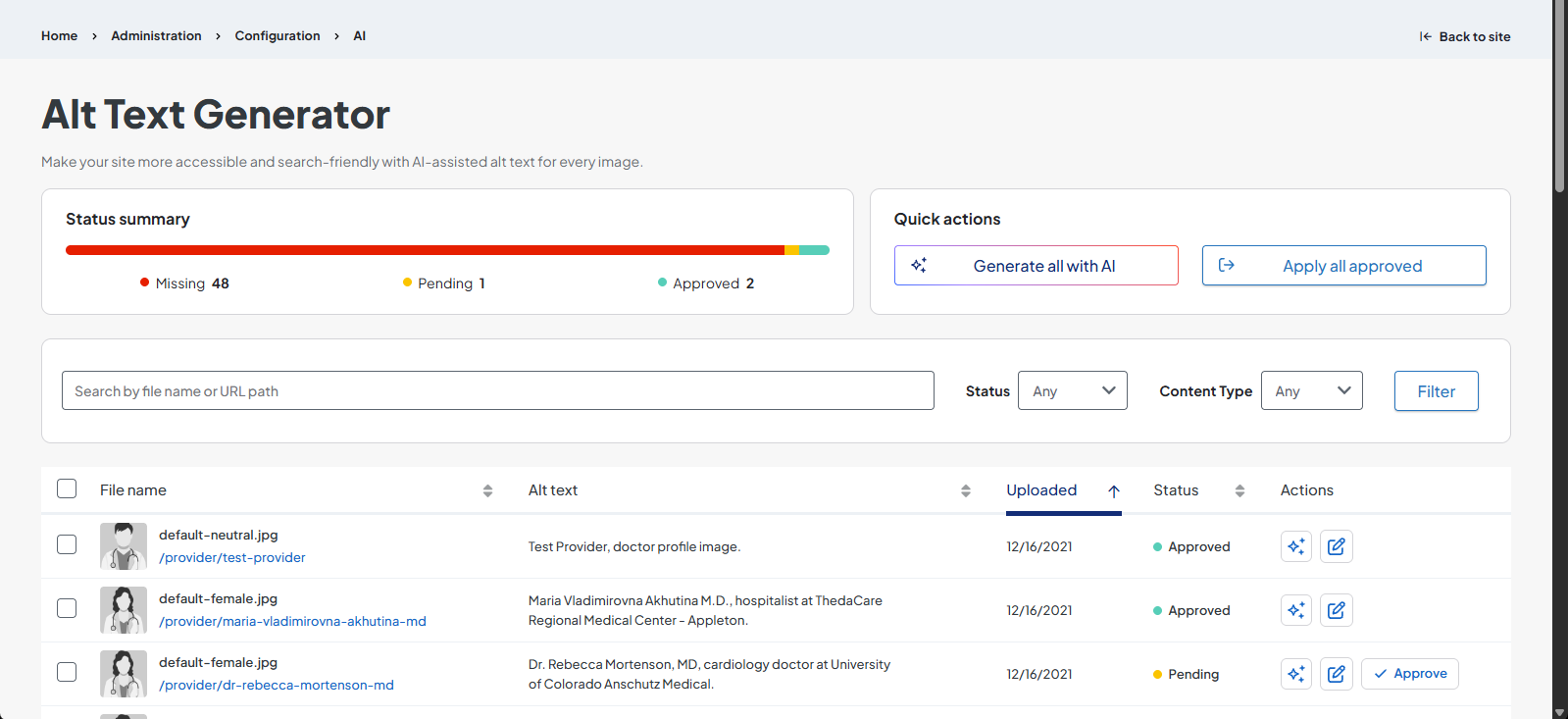
The AI Alt Text Generator dashboard is designed to help users manage AI-generated alt text for images across provider and location nodes. It displays images that are missing alt text and allows DXE Managers to generate, edit, approve, and apply these updates all in one centralized place.

How to access
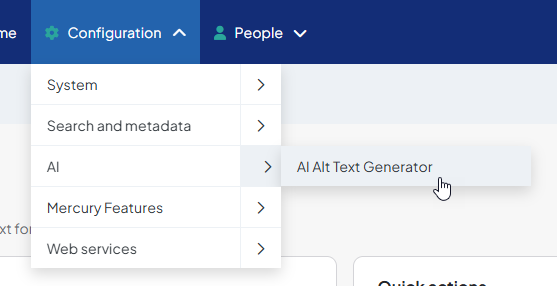
DXE Managers can access the AI Alt Text Generator dashboard by clicking Configuration > AI > AI Alt Text Generator in the DXE toolbar.
Status summary
At the top of the screen, the Status summary provides an overview of the draft status of the unpublished alt text.
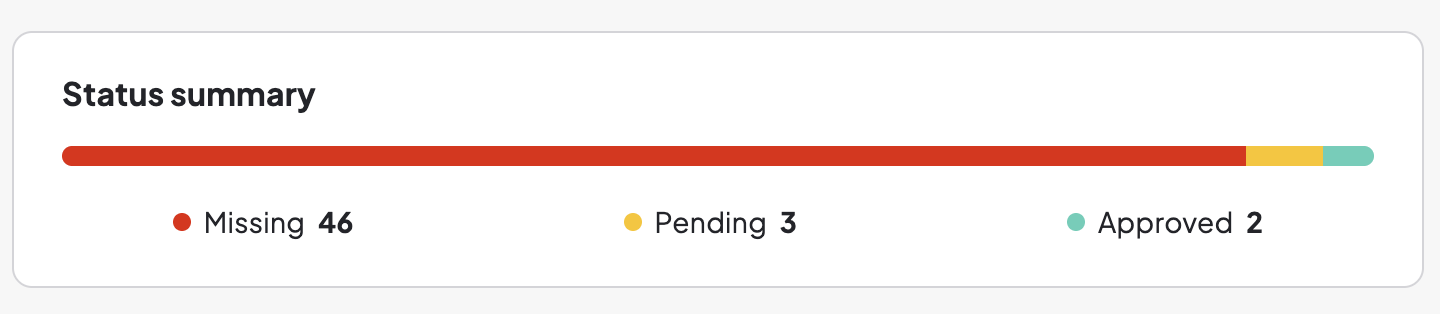
- Missing: The image currently has no alt text.
- Pending: Alt text has been generated by the AI but has not yet been approved or pushed live to the site.
- Approved: The user has approved the alt text, making it eligible to be applied to the site.
Quick actions
Quick Actions can apply changes to all items in the report simultaneously, allowing you to make changes without manually selecting individual items in the table.
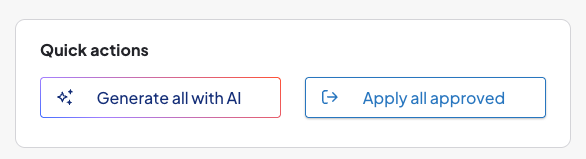
- Generate all with AI: This action generates alt text for all the images with "Missing" status in the list. These generated texts still require manual approval and are not applied to the site automatically.
- Apply all approved: This action publishes any items currently marked as "Approved" to the site. Once applied, these items will be removed from the dashboard.
List filters
You can use filters to narrow down the specific images shown in the table.

- Search: Enter a keyword or a URL path (such as /providers) to find specific criteria.
- Status: Filter the table by the current item status (missing, pending, or approved).
- Content Type: Filter by the type of content (currently limited to providers and locations).
Individual/multi-select options
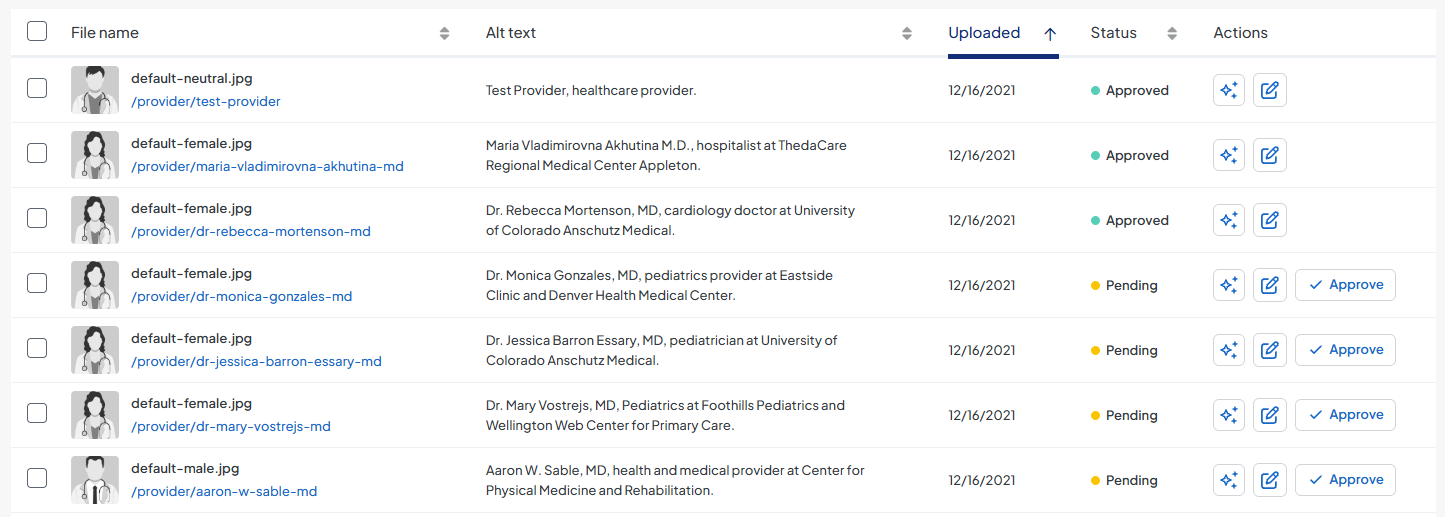
The table lists each image that is missing alt text based on its individual instance. If the exact same image is used on two different nodes without alt text, it will appear as two separate rows to ensure the alt text can be tailored to the specific content of each node.
Individual image actions
Each row displays the image preview, file details, alt text, upload date, status, and available actions.

For individual items, you can use the following actions:
- Generate
 : Drafts alt text for that single item.
 - Edit
 : Opens a details drawer where you can generate, edit, and save changes. Use this option if the AI-generated alt text needs adjustments before being applied to the site. Editing drafted alt text will change its status to "Pending".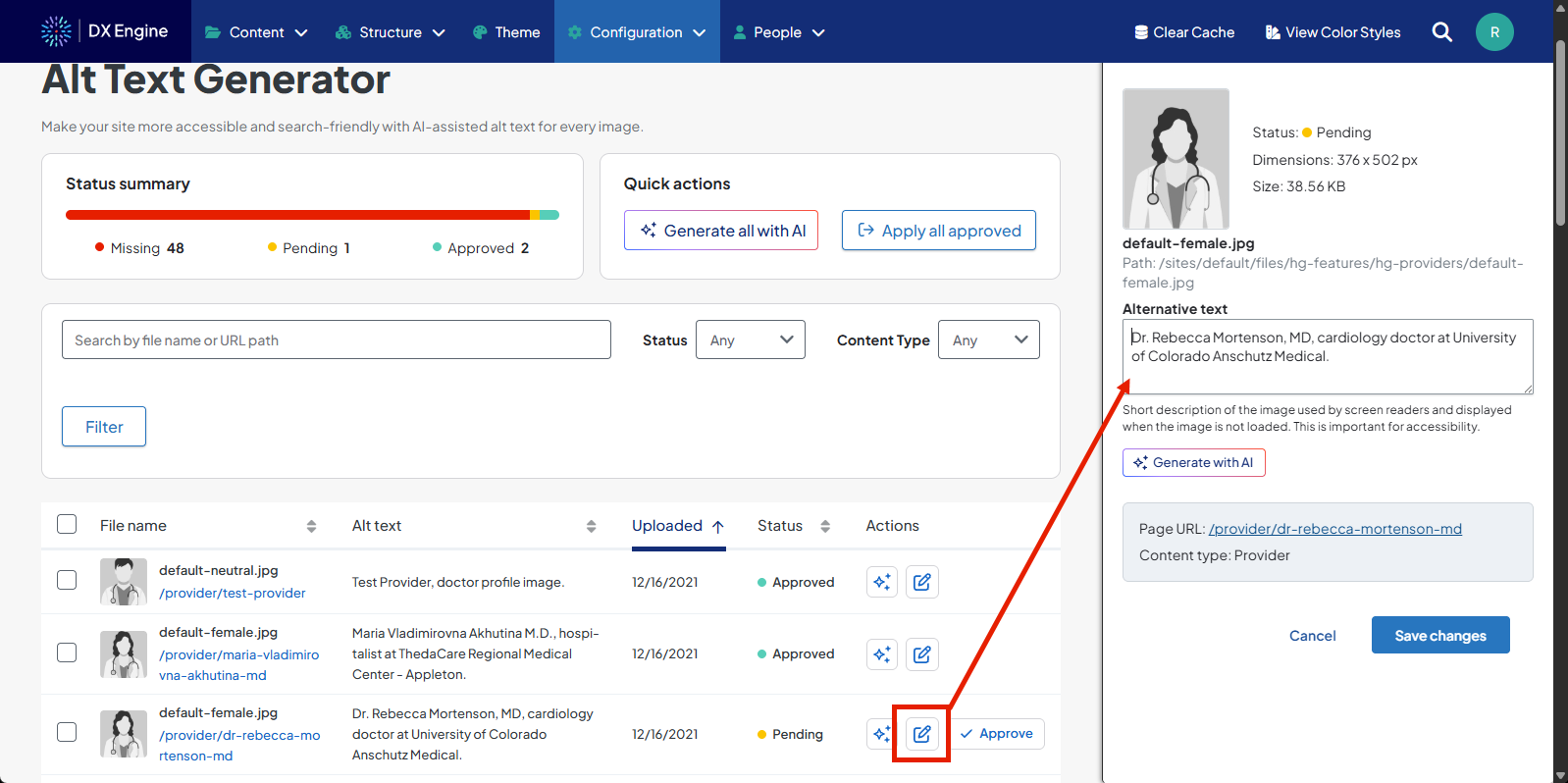
- Approve
 : This only appears when alt text has been drafted. Clicking this will change the item's status to "Approved" and make it eligible to be applied to the site. This does not publish the alt tags yet: they must be manually selected and published, or they will be published the next time "Apply all approved" is clicked in Quick actions.
Multi-select actions
To selectively perform batch updates, you can mark the checkbox next to all the images that you'd like to update at the same time. "Bulk edits" options will appear at the bottom of the window.
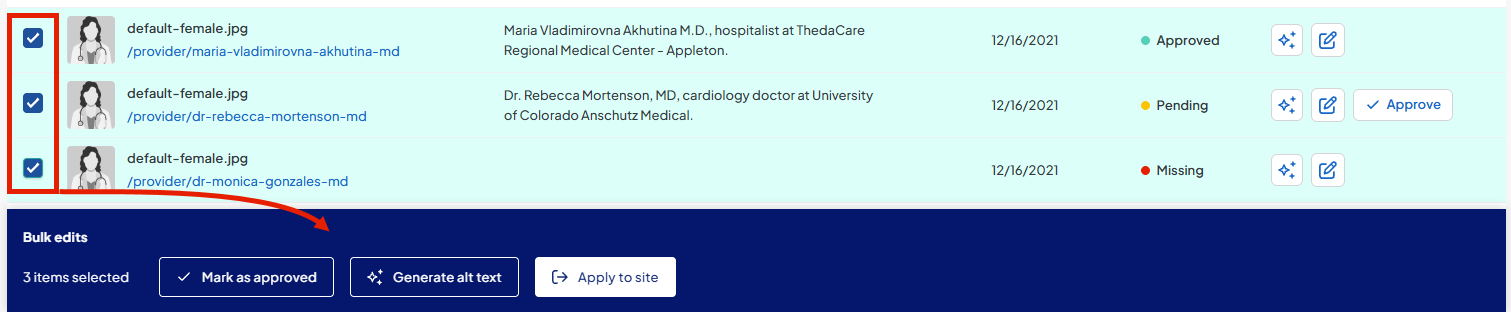
- Mark as approved: Changes the status of all "Pending" alt tags to "Approved". This will not affect any selected tags that are "Missing".
-
Generate alt text: Drafts new alt text for all selected images.
Note: This will overwrite any existing alt text drafts with new content. If any alt tags were marked as "Approved," this will reset them to "Pending." - Apply to site: Applies any "Approved" status alt tags to the live site. Any "Missing" or "Pending" status alt tags are skipped. Once applied to the site, the image will disappear from the Alt Text Generator dashboard. Any further updates need to be made in the image's node.
Related Help Content
 DXE: Adding content
Reference: Posts
OverviewA "Post" is one of the content types you can add to your website. In general, it is best used to ...
DXE: Organizing content
Taxonomy
SummaryTaxonomy terms allow you to classify, connect, and relate content across the site so your users ca...
DXE: Builder basics
Reference: Global search tab
OverviewThe Global Search tab in Theme settings allows you to set how global search bar components behave...
DXE: Getting started
Dashboard
After you log into DXE, you’ll land on the Dashboard for fast access to features and tasks to build and...
DXE: Adding content
Image guide
Use these specifications for general guidance on selecting and preparing images for your site. While they...
DXE
Accessibility support
WebMD Ignite is committed to providing health content and solutions that are relevant, relatable, and hel...