Overview
When using AI to generate text, the tool will reference a tone setting to understand which tone to use when writing the content (e.g., Conversational, Empathetic, Formal, etc.) You can define these tones and select them while generating content. Using a defined tone ensures that the content generated by AI consistenly achieves the type of writing you want to present.
Managing tones
- In the DXE Toolbar, click Configuration > AI > AI Alt Text Generator.
- Click Tones. The Tones management page appears and lists all the currently defined tones.
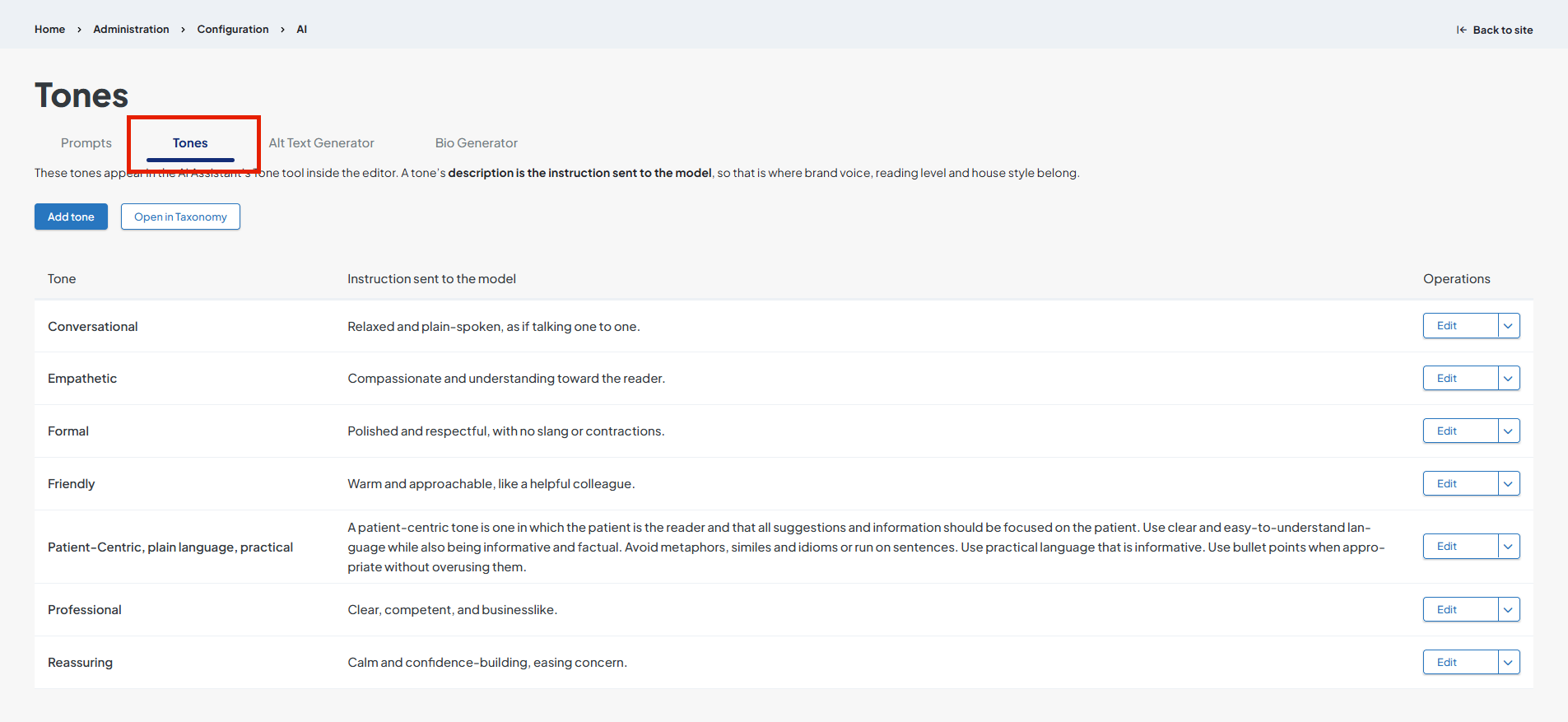
Adding a tone
- Click Add tone. The Add Term in AI Content Tones page appears.
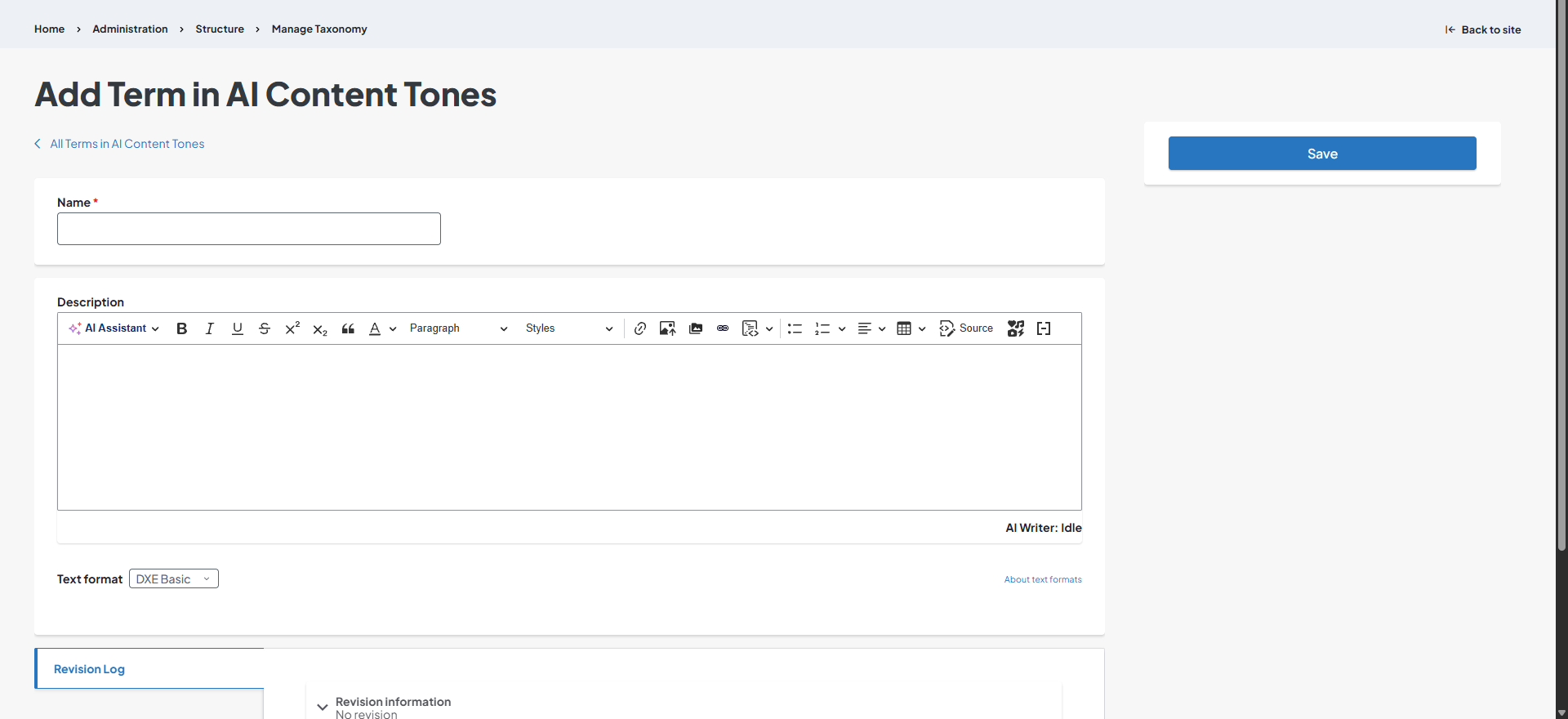
- Enter a Name.
- Enter a Description. This is where you describe the tone to the AI. Refer to existing tone descriptions for examples.
- Click Save. The new tone will display in the list.
Editing existing tones
- Click Edit next to the tone to modify.
- Change the Name and/or Description as needed.
- Click Save.
Deleting a tone
Click the dropdown arrow next to the Edit button, then click Delete.
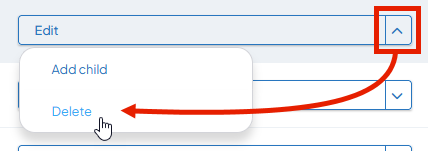
Add child tone
A child tone is a more specific tone direction you can give the AI that you want to associate with a current tone. For instance, you may want to add a "6th grade reading level" child tone under the "Reassuring" tone. When selecing "6th grade reading level", the AI will use the tone instructions for both "6th grade reading level" and "Reassuring."
- Click the dropdown arrow next to the Edit button, then click Add child.
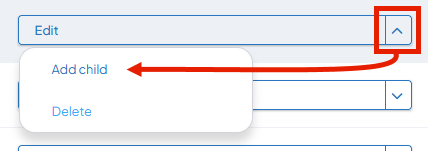
- Follow the instructions under Adding a tone (starting at step 2).
Open in Taxonomy
This opens an alternate tone management method, where you can manage and edit tones in the Taxonomy editing interface.
Related Help Content
 DXE: Organizing content
Creating a menu
In Digital Experience Engine, a menu structure must be created first. After creating the structure, the n...
DXE: Adding content
Image carousel
Summary An image carousel allows you to add a collection of pictures to any section in your site! User...
DXE: Adding content
Headline and Media Marquee component
OverviewA Headline and Media Marquee is a component that can be placed in an Enhanced Layout page. It can...
DXE: Adding content
Theme
The “theme” is where you start applying the basic definitions in the brand to the more recognizable e...
DXE: Adding content
How-to: Marquee carousel
SummaryWith marquee carousels, you can easily create an automatic or user-controllable slideshow of image...
DXE
Customizing your site features
Digital Experience Engine (DXE) has all the essential site building options, such as establishing your br...