How-to: Use scheduled transitions
Overview
Scheduled transitions are a way to schedule content to update automatically after a selected date and time. You can use scheduled transitions to:
- Publish a new version of the content with updated info
- Archive the content (i.e., remove it from public view)
- Restore content to a previous state
The "Scheduled transitions" tab is available for the following types of content:

Notes:
- You must have the DXE Manager role to see tabs that have editing access, including "Scheduled transitions."
- Scheduled transitions may not be enabled in your DXE instance.
If you do not see the "Scheduled transitions" tab when following the instructions below, please verify you have the DXE Manager role. For more help, submit a support ticket or contact your Account Manager to confirm your setup.
How it works
When viewing content that supports scheduled transitions as a DXE Manager, a "Scheduled transitions (#)" tab appears in the set of tabs above the content. You may need to click the right caret to reveal additional tabs.
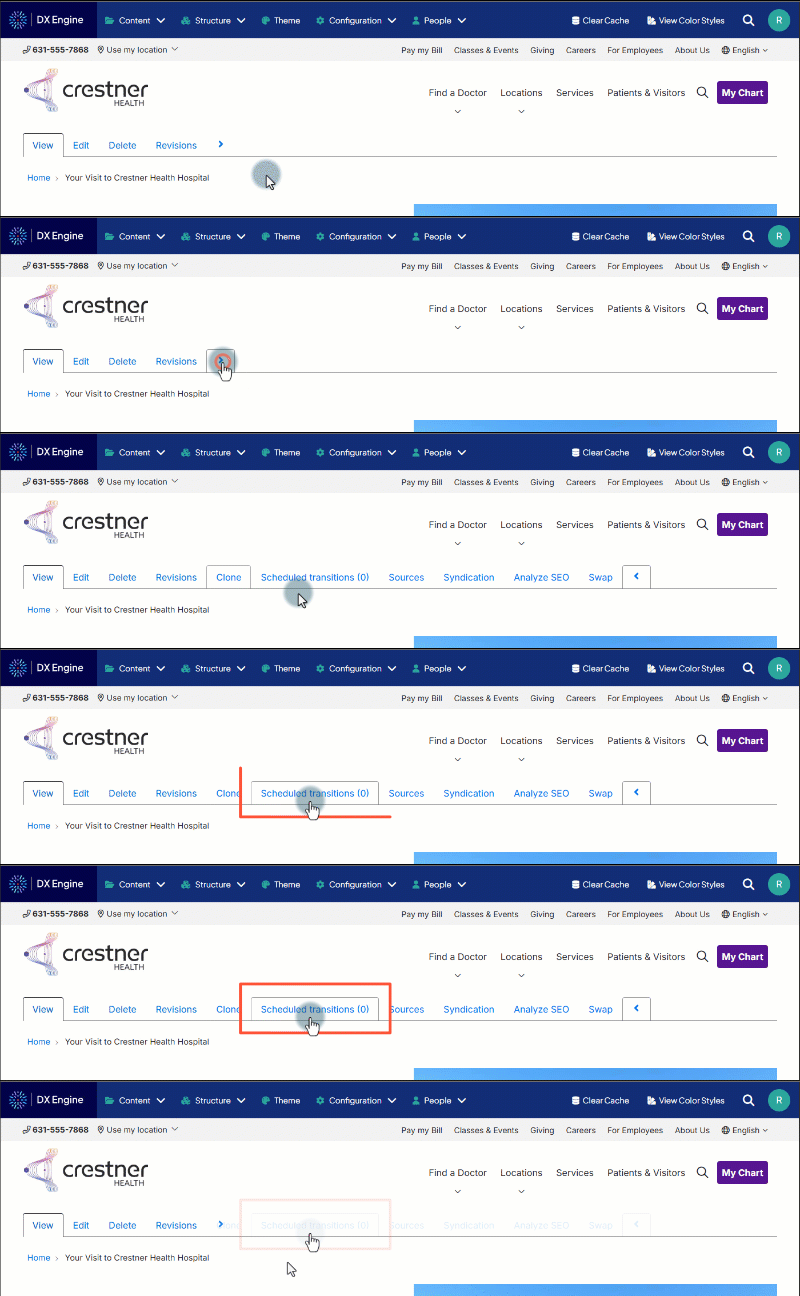
Clicking the "Scheduled transitions" tab allows setting up a scheduled transition for that content. During setup, you can select which revision of the content to transition to. This can be a previous revision, a draft that hasn't been published yet, or the current version (in the case of scheduling an archival). You can also select the "latest" revision, which will automatically use the newest revision even if it was created after setting the transition.
After choosing a revision, select a transition action for that revision (e.g., Publish, Archive, Create new Draft, etc.), and a date and time to mark the transition as ready.
An automated process runs once per hour to process any scheduled transitions that are ready. This process is staggered between sites to reduce impact on the site performance. The transition will occur within 1 hour of the date and time selected.
After the transition occurs, the result becomes the newest revision of the content.
How revisions work
A revision is a snapshot of the content in its current state, including (but not limited to):
- content body
- moderation state (e.g., Draft, Archived, Published)
- URL alias and any redirects
- applied taxonomy
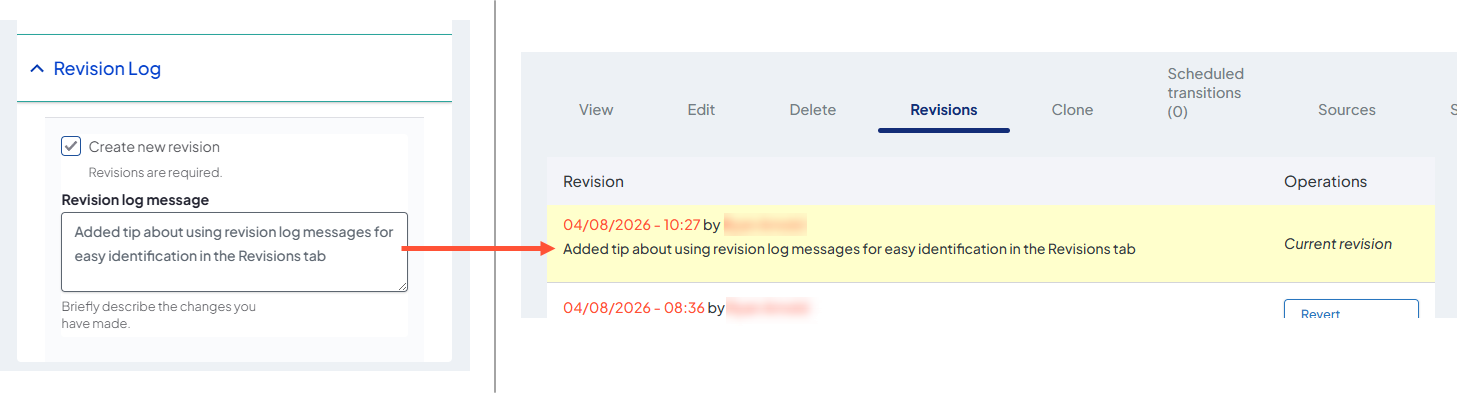
A new revision of an article is created every time you click "Save" and the "Create new revision" option under Revision Log is marked. By default, this is option is required and cannot be unchecked.

Revisions and moderation state
Setting a content's status to "Draft" can do a few different things:
- If the content has never been published - Draft status saves the current state of the article but does not make the content visible to the public.
- If the content has been published before - Draft status saves your current changes as a new revision, but site visitors will only see the last Published version of the content. You can continue saving new draft revisions as you make updates. This is useful for working on a new version of something over time without publishing until the changes are complete.
To remove content from public view entirely, you can set the status to "Archived." Archived content remains available to you as a DXE Manager to edit and re-publish later if you want.
Setting a scheduled transition
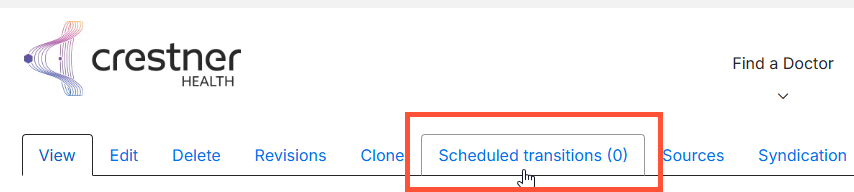
- Navigate to the content to transition, then click the "Scheduled transitions (#)" tab.
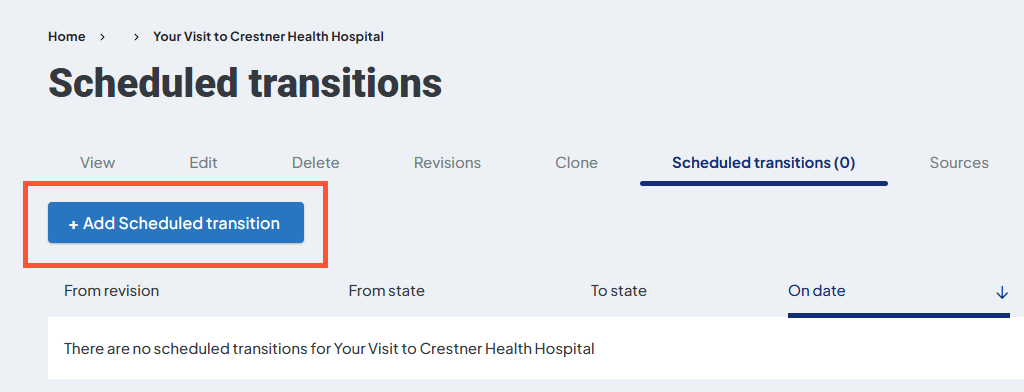
- Click "+ Add Scheduled Transition."
- Select a revision to transition to.
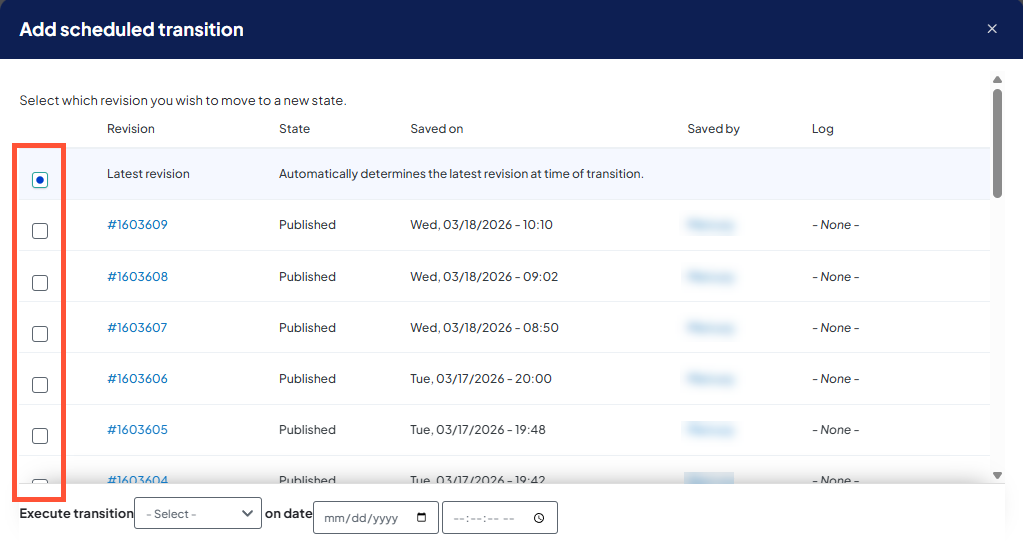
- By default, Latest revision is selected. This will automatically select the most recent revision at the time of the transition.
- You can scroll down through previous revisions and select a specific one to transition to by marking the selection box on the left.
- Set Execute transition. This is the action you want to perform.
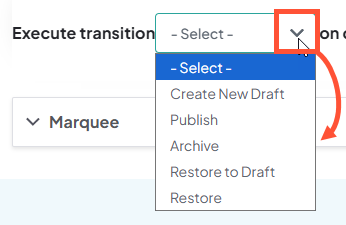
- Create new draft: Create a new unpublished draft of the content using the selected revision. The published version remains accessible.
- Publish: Publish the content of the selected revision.
- Archive: Remove the content from public view. Visitors can no longer see the content, and it will not appear in search results.
- Restore to draft: Create a new draft of an Archived revision.
- Restore: Re-publish an Archived revision.
-
Set the date and time to mark this transition as ready.
 Tip: To check for time difference, you can Save a new revision of a content (without making any changes) and compare the timestamp on the revision to your local time. This will tell you if you need to make any adjustments to accommodate a different time zone.
 - Depending on the transition settings, a Recreate pending revision option may appear. You can leave this marked to check for any pending work on the content and recreate it. All revisions will remain in the revision history regardless of choice.
- A pending revision is a draft of the content that is more recent than the one selected in the transition. This draft may contain edits that are not present in the revision selected to be published.
- If this checkbox is marked: DXE will publish the selected revision (i.e., make it the public-facing content), then immediately create a new draft with the content of the most recent pending revision. This allows you to continue working on that pending revision right away.
- If this checkbox is not marked: DXE will publish the selected revision and not create any new drafts. The pending revision remains in the revision history. Past revisions can't be edited directly. To continue working on that (or any) past revision after this transition occurs, you would need to set another scheduled transition using Create new Draft and select that specific revision in the revision history.
- Click Schedule transition.
After setting the transition, a new transition will appear in the "Scheduled transistions (#)" tab, and the number in the tab label will increment by 1.
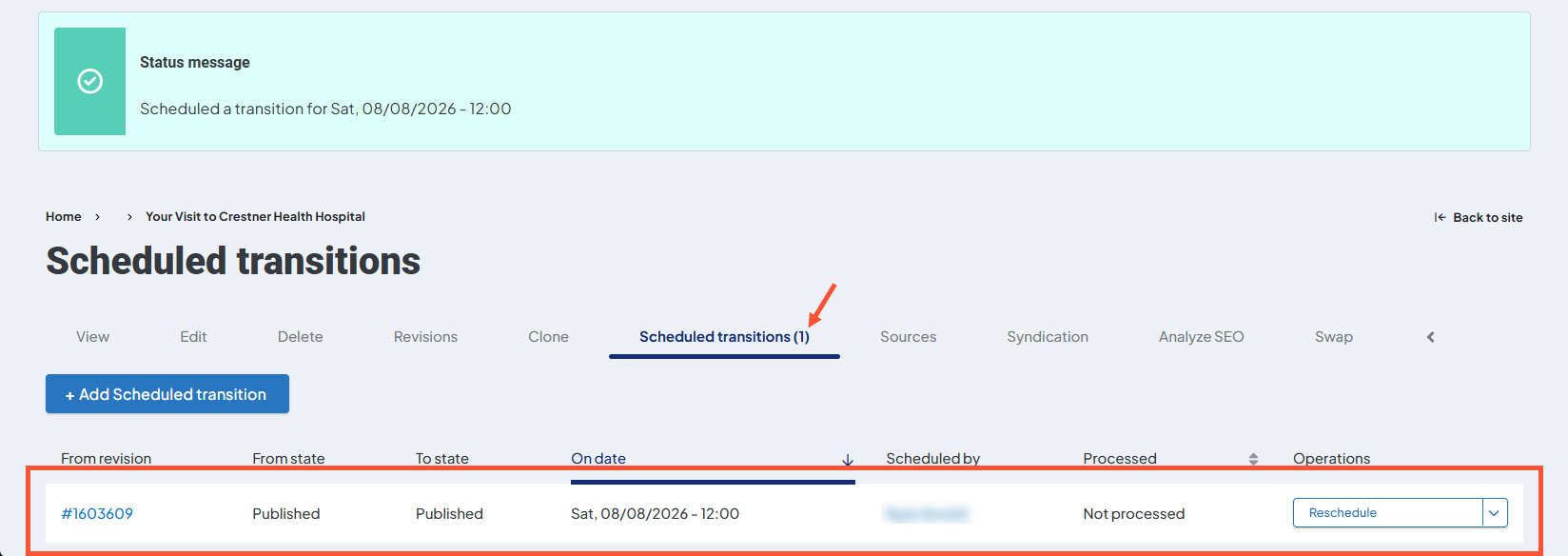
After the transition occurs, it will clear from this queue and the transition will be complete.
Rescheduling or canceling a transition
To reschedule a transition:
- Click the "Reschedule" button under Operations.
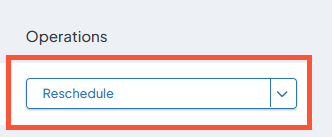
- Enter a new date and time.
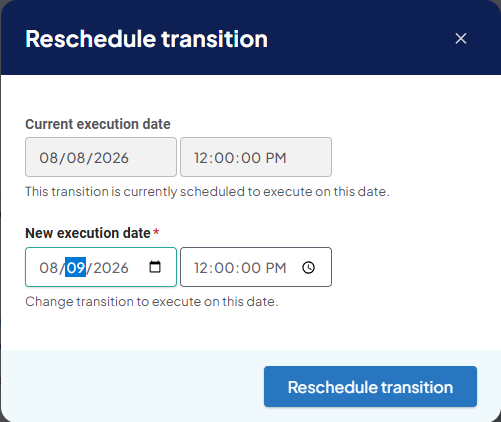
- Click "Reschedule transition." The transition will show the new date.

To cancel a transition:
- Expand the dropdown arrow next to "Reschedule" and click "Delete".
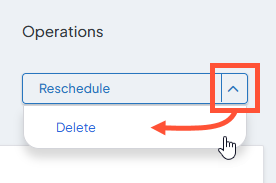
- Click Delete in the confirmation screen.
This will delete the transition only; the actual content will remain in its current state.
Related Help Content
 DXE: Builder basics
Setting Default & Conditional Brands
Default BrandYou can set up and save many Brands in your site by clicking Structure > Brands in the Toolb...
DXE: Adding content
Using Hidden Blocks
SummaryWhen blocks are assigned to any other region on the page, they will appear only in that region (an...
DXE: Adding content
Theme
The “theme” is where you start applying the basic definitions in the brand to the more recognizable e...
DXE: Organizing content
Configuring a basic menu
Note: Menus can be placed on your site using either a basic menu block or custom menu block. The followi...
DXE: Organizing content
Adding/arranging menu items
Adding links to a menuClick the Structure dropdown arrow, then Menus in the DXE menu bar. Click the + Ad...
DXE: Organizing content
Creating a menu
In Digital Experience Engine, a menu structure must be created first. After creating the structure, the n...