In this release: New AI Assistant | Location Page Holiday/Temp hours | Provider Search default distance | Fixes


Supercharge your content creation: in-editor AI power arrives
We are excited to announce the launch of the In-Editor AI Assistant, bringing seamless, intelligent text creation and transformation capabilities directly into your publishing workflow.
What it is
We’ve added the AI Assistant toolbar button to DXE Basic and DXE Full text editors. Built directly into the editing experience, this enhancement streamlines content creation while respecting organizational governance and technical infrastructure:
- Multilingual Support: Configured out-of-the-box to support site-defined languages (English and Spanish).
- Architecture: Aligned with dynamic environment models to deliver consistent, context-aware performance while maintaining a clean editing interface.
How it works
When editing any page, the text editor toolbar will include the “AI Assistant” button. Click to open and select from the following available actions:
- Generate with AI: Generate new text from a custom prompt and insert it at the cursor position.
- Modify with a prompt: Select text and give a free-form instruction to rewrite or refine it.
- Reformat HTML: Cleans up and standardizes the markup of the selected content.
- Fix spelling: Instantly correct spelling and grammar in the selected text.
- Summarize: Produce a concise, shorter version of the selected content.
- Tone: Rewrite the selection in a different style or tone, such as formal or friendly.
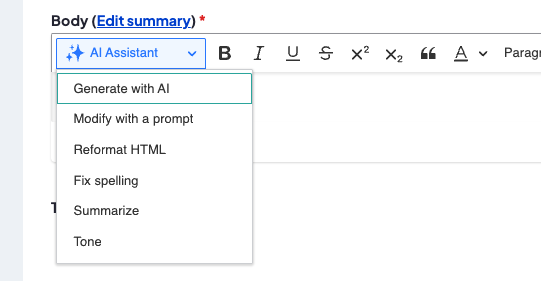
User Workflow:
Clicking an action opens an intuitive modal where you can enter prompts and preview the generated output. For each action, simply click “Save changes to editor” to apply the newly generated content to your field.
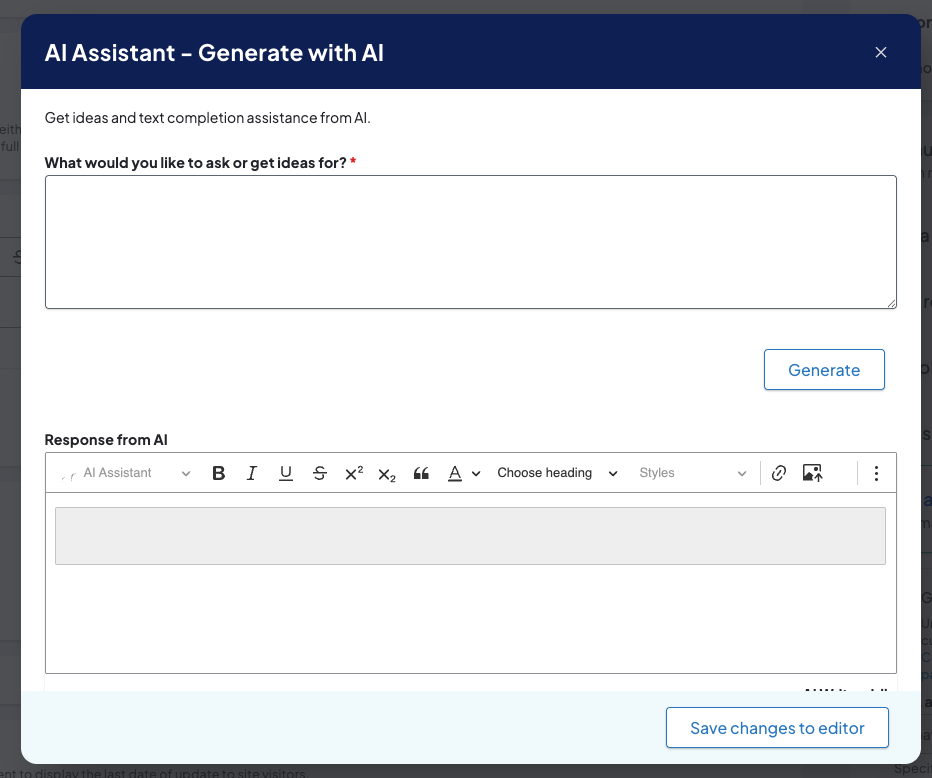
Modify existing content:
Highlighting any preexisting text will reveal the AI Assistant and the contextual dropdown menu with the same options as the toolbar menu, however, the context and focus will be specifically on what has been selected. You can tell the AI to modify “enable detailed visualization” in the example below
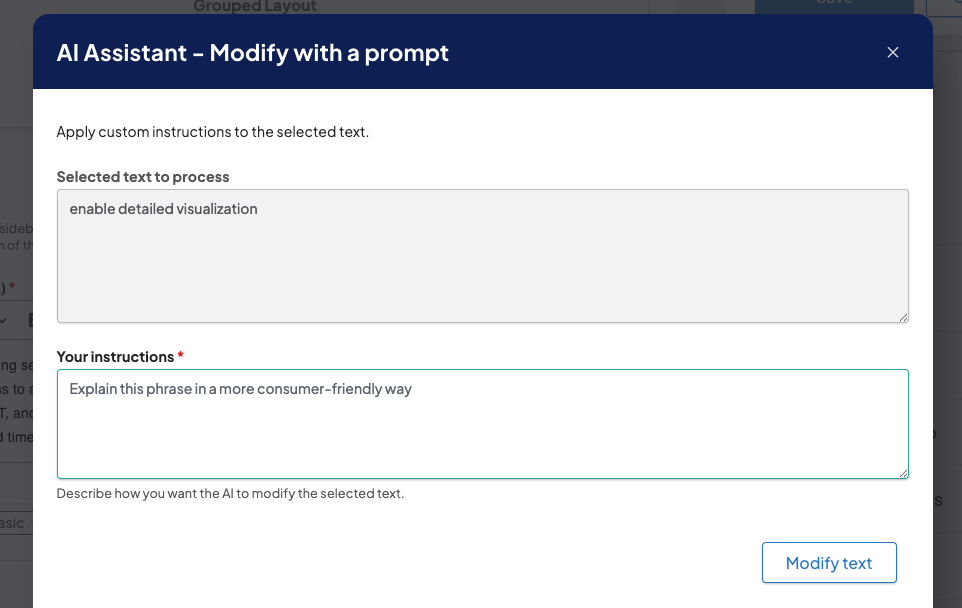
Why it matters
This feature empowers content editors with powerful, in-place AI capabilities — such as summarization, translation, and tone adjustment — directly inside the text editor, driving editorial efficiency, reducing context switching, and significantly speeding up content production.

Automated holiday & temporary hours available for location pages
We’ve launched a native scheduling feature for location hours, allowing teams to set date-specific temporary closures or holiday schedules that automatically update patient-facing search results and location pages in real time.
What it is
Locations previously lacked a native way to schedule holiday or temporary closure hours, requiring manual updates to regular operating schedules. This occasionally caused inaccurate "Open Now" statuses across location pages, interactive maps, and search filters.
This enhancement introduces a scheduled holiday hours feature that lets editors configure date-specific temporary hours or full closures per location, complete with a custom banner message and automatic activation/reversion based on each location's local time zone.
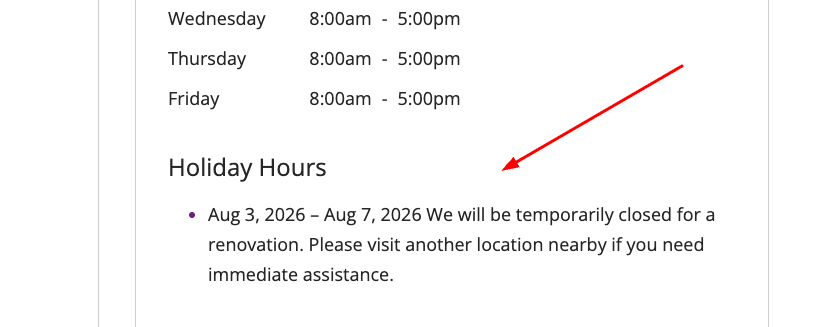
How it works
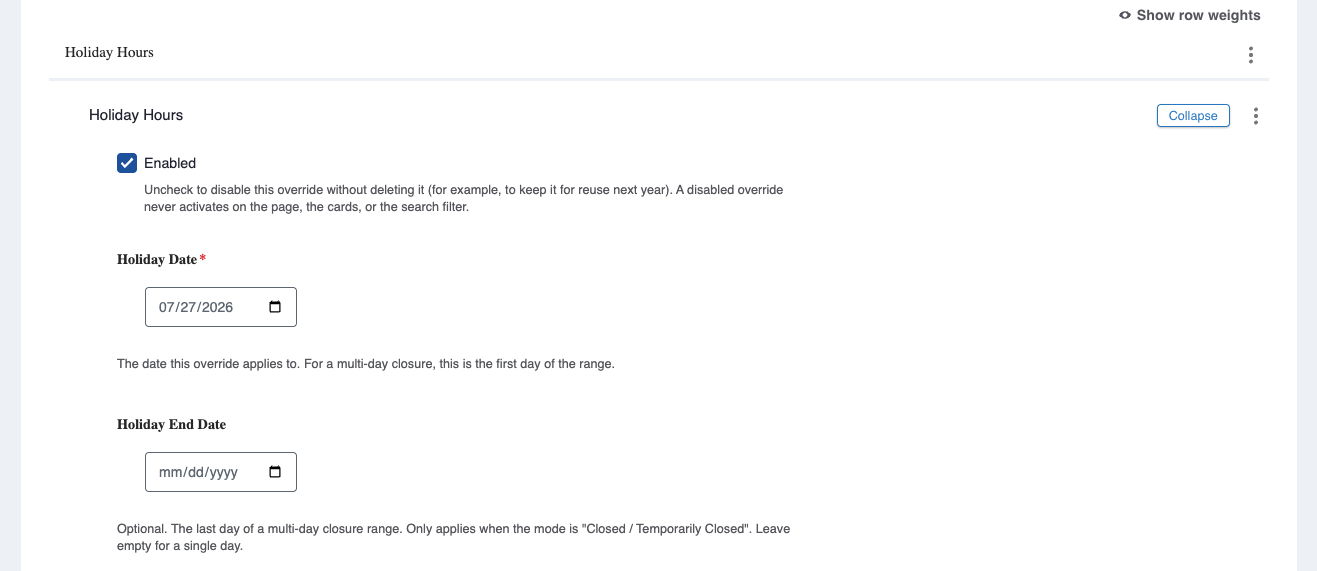
- Editing a Location: When editing any location, navigate to the new “Holiday Hours” field group to configure:
- Dates & Times: Add the holiday date and end date and times.
- Single vs. Multi-Day: For single-day closures, simply enter a “Holiday Date” value. Use the “Holiday End Date” field exclusively for multi-day events.
- Closure Reason & Banner: Specify the reason for closing (e.g., holiday, temporary closure) and enter a custom message to display on the front end.
- Front-End Display:
- Detail Pages: During the active holiday date range, your custom message automatically displays in the hours section of the location details page.
- Location Cards: The "Open Status" badge automatically displays during an active holiday window, even if no regular operating hours are added.
-
Setup & Deployment: Updates deploy automatically.
Why it matters
This feature ensures patients always see precise, real-time operating hours and accurate "Open Now" statuses across all search surfaces during holidays and unexpected closures. It eliminates patient confusion and prevents unnecessary trips while protecting your permanent, underlying source location data from manual overwrites.
Tailor your search radius: configure default distance in Provider Search
We’ve added a new administrative setting that allows you to customize the default distance radius used in the Provider Search experience.
What it is
A new theme configuration option that lets site administrators define the initial default "Distance" value applied when users search for healthcare providers.
How it works
Updating the default search radius takes just a few clicks in the administration toolbar:
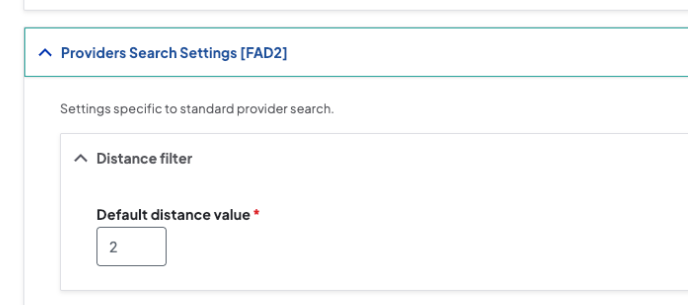
- Configuration Path: Navigate to Theme Settings > Providers > Providers Search page.
- Setting the Value: Enter your preferred radius in the “Default distance value” field.
-
Feature Requirement: This setting only applies when the Provider Search Feature mode is set to “Providers Search”.
Why it matters
This enhancement allows organizations to optimize provider discovery based on their specific geographic footprint—such as setting a smaller default radius for dense urban areas or a broader radius for regional health networks. By tailoring the initial search radius, patients receive relevant local provider results immediately without needing to manually adjust distance filters.

- Location search loading and direct URL filtering: Resolved an issue where large result sets caused location lists and maps to hang indefinitely, and direct search URLs containing keywords (e.g., ?q=cardiology) failed to apply filters. We updated loading-state error handling and filter initialization logic to ensure map views always resolve gracefully. Search filters now properly hydrate, display filtered results, and persist in the address bar when sharing direct links.
- Location page internal CTA links: Resolved an issue where internal links in the Call to Action (CTA) field on Location pages caused a 500 system crash. The template code was updated to use a standardized URL rendering method that safely handles internal link paths. Location pages now load reliably and remain accessible regardless of whether the CTA button links internally or externally.
-
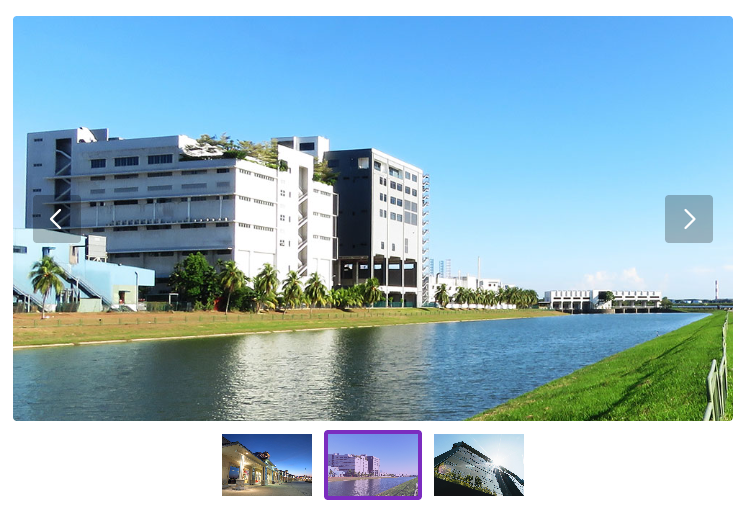
Screen reader announcements for slideshows: Added screen reader support for slideshow controls after finding that Next/Previous navigation changes were not being announced to visually impaired users. By integrating polite aria-live regions into the slideshow component, screen readers now automatically announce slide position updates (e.g., "Showing slide 2 of 5") when users interact with buttons, dots, or thumbnails. This update resolves a key accessibility barrier and achieves WCAG 4.1.3 compliance.
-
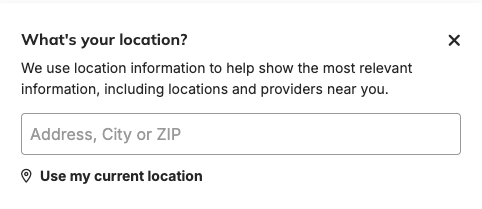
Keyboard navigation for geolocation widget: Previously, global geolocation controls relied on click-only links, preventing keyboard-only users from interacting with them. We updated all location controls with proper interactive button attributes and keyboard event listeners for Enter and Space keys. This update ensures full WCAG compliance, allowing screen reader and keyboard users to freely set, update, or clear saved locations.
-
Search input value preservation on blur: Fixed an accessibility issue where search fields (such as Site Search and Provider Search) automatically cleared entered or prefilled text when users tabbed or clicked away. We removed the automatic field-clearing logic on input blur to ensure typed keywords remain intact when focus changes. This change prevents unexpected data loss and aligns search components with WCAG 3.2.2 and 3.2.5 standards.
- WebMD data services plugin scoping: Resolved an issue where the WebMD Data Services source plugin was incorrectly handling event imports and preventing events from loading on certain sites.
Related Help Content
 DXE: Builder basics
Reference: Link checker
OverviewThe Link checker module scans all links in your site (both internal and external) to detect any l...
DXE
Release notes: March 12, 2026
Precision meets proximity: smarter local searchWe’ve overhauled Local Search pages to ensure patients f...
AI Alt Text Generator
OverviewThe AI Alt Text Generator dashboard is designed to help users manage AI-generated alt text for im...
DXE
Release notes: May 14, 2026
No more empty slots: cleaner hours at a glanceWe’ve streamlined the location detail view to ensure you ...
DXE
Dec 2023 release notes
Image caption controls in Theme settingsWe have added some global options for your site image captions th...
DXE
Release notes: April 2025
Source Sync Report for third party providers and locationsIntroducing a new module giving you access to a...