Fix side nav menu not displaying from context
Categories: DXE: Troubleshooting, DXE: Organizing content
Issue
The sidebar navigation menu displays the parent menu instead of the contextual child menu for a selected page.
Cause: The menu link points to the selected page from outside its main folder structure—most commonly when the same link exists twice in the menus that appear on the page. Since this menu item exists in multiple menus, it will gather it's context from the first menu it appears in on the menus page.
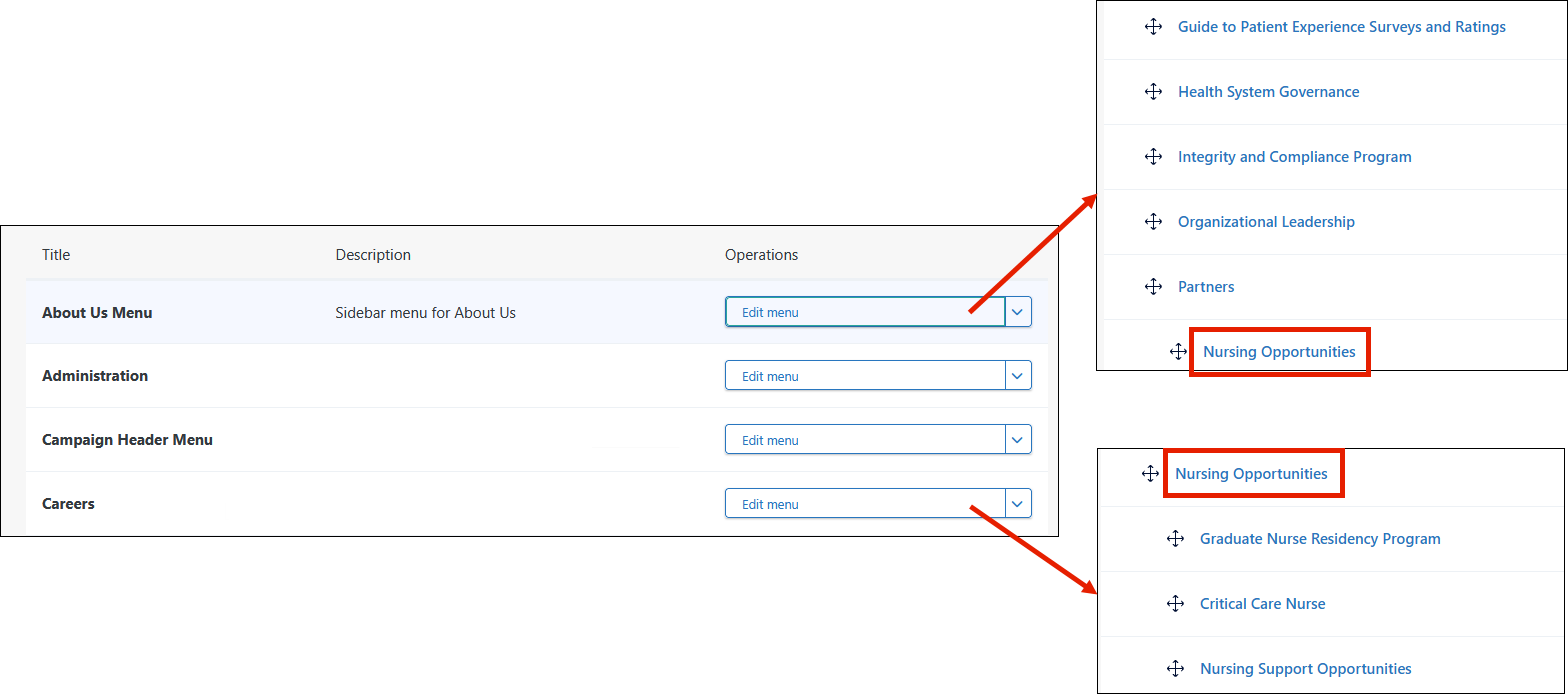
In the example menus above, the same "Nursing Opportunities" menu link appears twice in different menus. In pages where both menus appear, the system will always take the menu context from the first menu (alphabetically) in which the link appears (in this case, "About Us Menu"). To resolve this example, you would follow the steps below to change the link in the "Careers" menu to a redirect link. This makes the links unique, and the expected context will be retrieved based on which link is referenced.
Workaround
To resolve this, update the duplicate menu link to use a unique URL path, then redirect that new path to the target page.

Part 1: Updating the duplicate menu link
- In the DXE Toolbar, click Structure > Menus.
- Find the menu with the link that needs updating and click its Edit menu button.
- Locate the link in the menu, then click Edit. (If the link is nested, click the + icon under its parent menu to expand and reveal it).
-
Change the Link path to a unique URL not currently in use on the site.
- Explicit path example: Change "/services/nursing-professional-development", to "/nursing-professional-development".
- Node reference example: If the field shows a title and node number (e.g., "Nursing: Professional Development (1024)"), replace it with an explicit, unique URL path (e.g. "/nursing-professional-development").
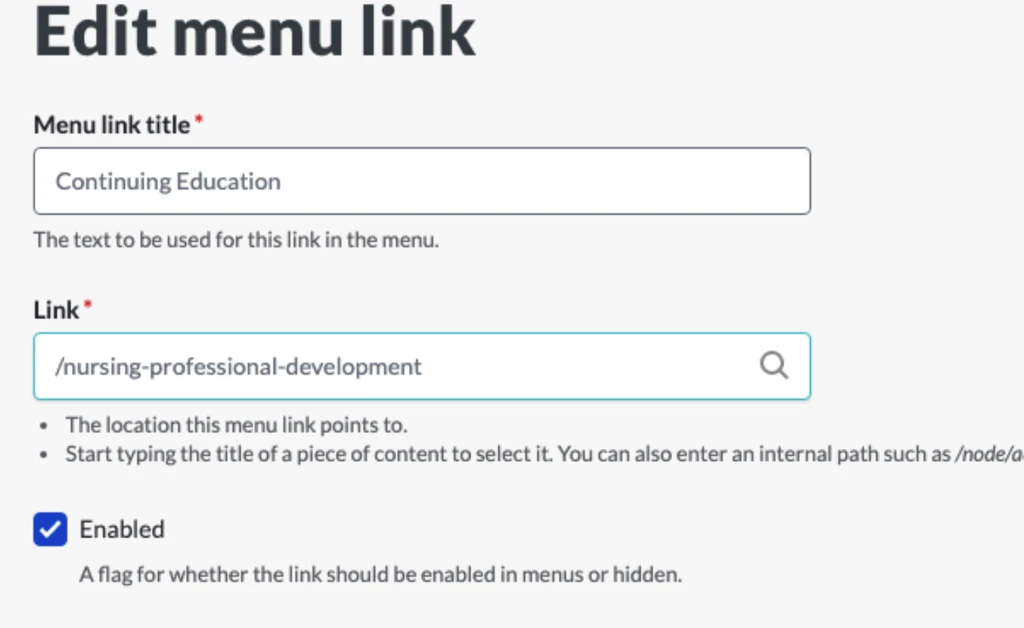
- Click Save.
- In the DXE Toolbar, click Clear Cache to remove the old menu link from the site cache.
Part 2: Redirecting the new path
- In the DXE Toolbar, click Configuration > Search and metadata > URL redirects.
- Click + Add redirect.
- In the Path field, enter the new URL created in Part 1 (e.g., "/nursing-professional-development").
- In the To field, type the title of the destination page and click it in the autocomplete suggestions.
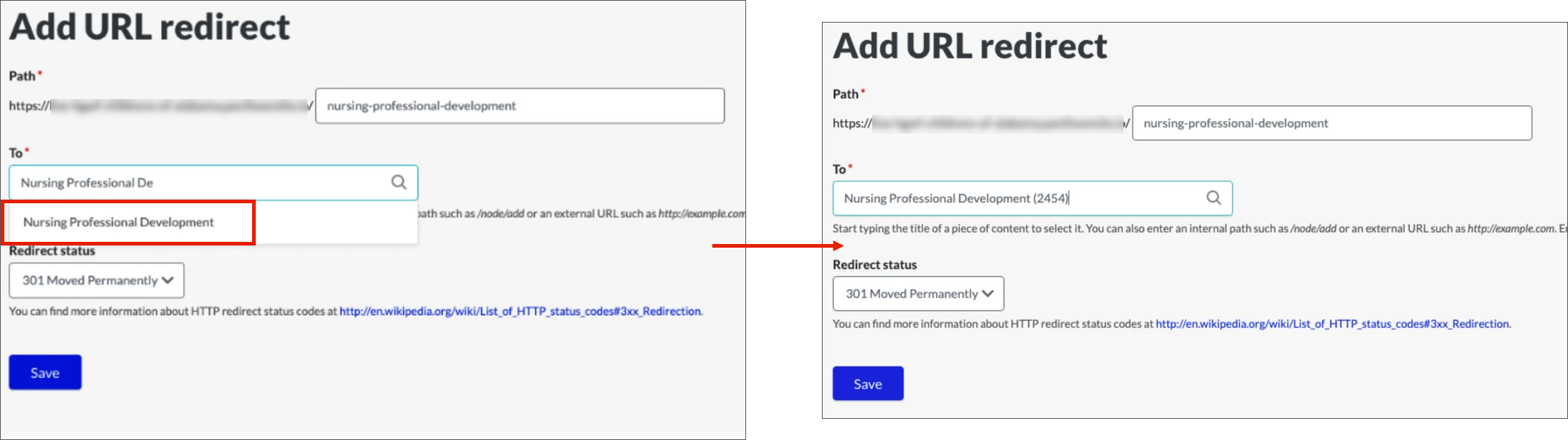
- Ensure the Redirect status is set to 301 Moved Permanently.
- Click Save.
- In the DXE Toolbar, click Clear Cache again.

Related Help Content
 DXE: Organizing content
Adding/arranging menu items
Adding links to a menuClick the Structure dropdown arrow, then Menus in the DXE menu bar. Click the + Ad...
DXE: Organizing content
Preview: Streamline provider tagging with the Taxonomy Usage Report
When a consumer turns to your website to find care, their journey relies heavily on the clinical data arc...
DXE: Organizing content
Menus
OverviewMenus help your users navigate through your site. You can use menus to group pages of similar top...
DXE: Organizing content
Creating a menu
In Digital Experience Engine, a menu structure must be created first. After creating the structure, the n...
DXE: Organizing content
Deleting menus or menu items
Removing a menu item from the menuClick the dropdown arrow next to the menu item’s Edit button, then cl...
DXE: Configuration
Ignite U LIVE Webinar - September 16, 2026
Please view our September 16, 2026 Ignite Education Ignite U LIVE discussion with:Marsha Gelber; Associat...