Overview
Use Local Search Pages to create location-aware provider directories that improve SEO by generating indexable pages based on combinations of location and taxonomy. These pages can be generated from location content or from combined taxonomy and location rules, and are accessible directly from location pages.
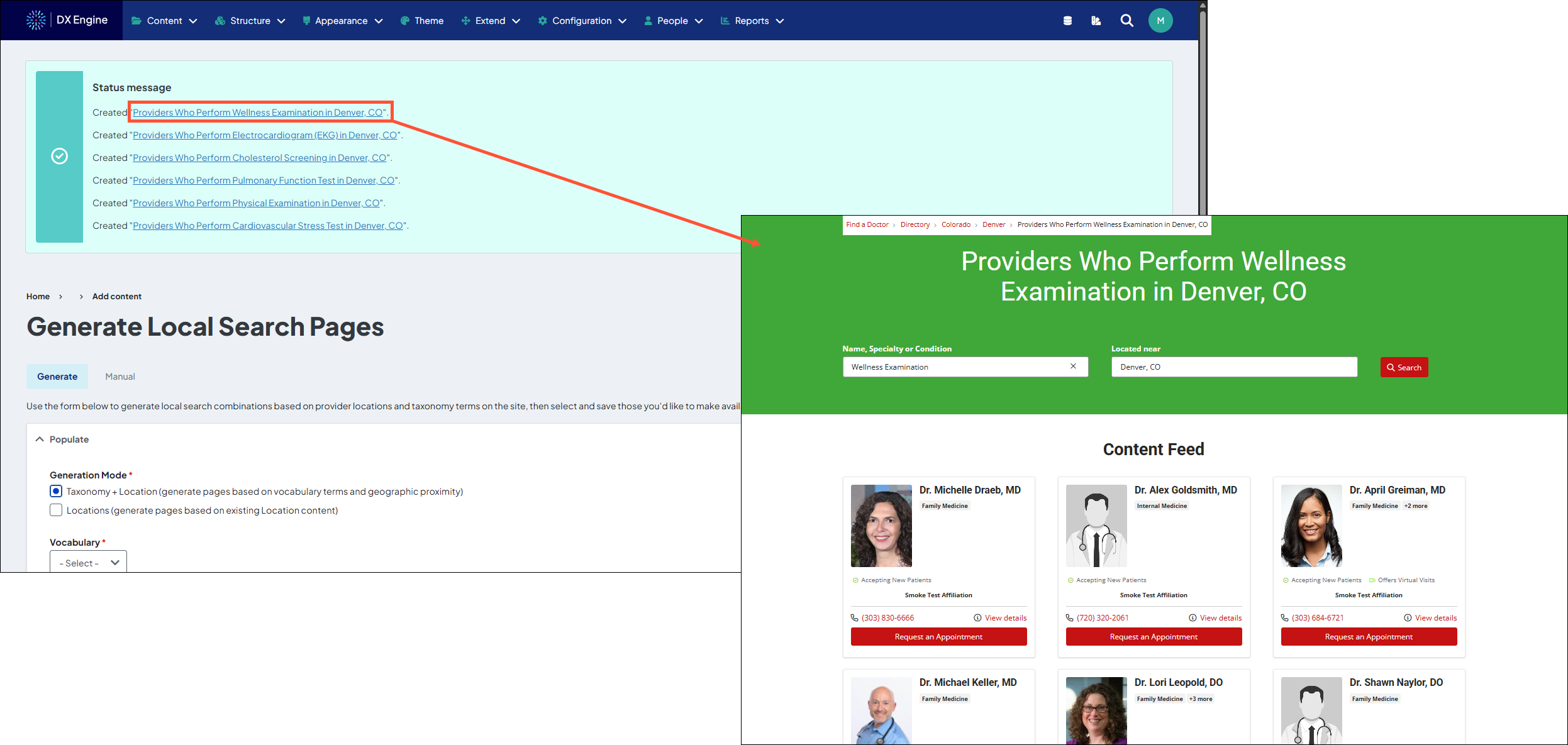
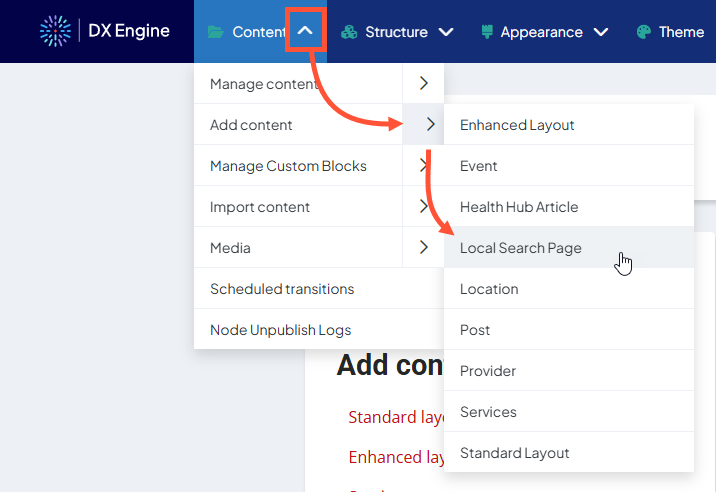
Where to access Local Search Pages
In the DXE Toolbar, navigate to: Content → Add content → Local Search Page
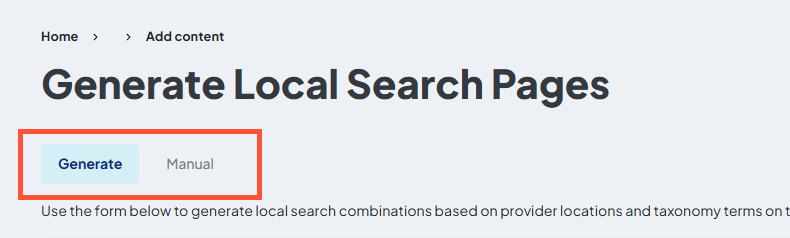
From here, you can choose from 2 tabs:
- Generate: Automatically generate Local Search Page(s) efficiently and consistently.
- Manual: Manually create a Local Search Page with full control over content and layout.
Generating a Local Search Page
First, select the Generation Mode:
- Taxonomy + Location: Generate pages based on taxonomy vocabularies (for example: Affiliations, Conditions, Insurances, etc.) combined with geographic proximity to a location.
- Locations: Generate pages strictly from existing location content (useful when you want directory pages per city/state regardless of taxonomy).
Field definitions
* denotes a required field.
Fields specific to Taxonomy + Location Generation Mode:
- Vocabulary *: Select the relevant vocabularies to use (e.g., Affiliations, Conditions, Insurances, etc.).
Fields specific to Locations Generation Mode:
- Select Locations *: Choose either All published locations or Select specific locations:
- All published locations: Will pull results from all published locations.
- Select specific locations: Adds a text entry field where you can enter the specific location(s) you want included.
Common fields:
- Filter by Affiliations: Optionally enter one or more affiliations to narrow which providers are included. Leave empty to include all providers.
- Location *: Choose which location(s) will be used as the center point for proximity-based results.
- Distance in Miles *: Enter the acceptable distance from the selected location to be included in search results.
- Threshold: Automatically check all results with at least this many providers.
- Provider Name *: Choose the label you want to use for page titles and SEO meta tags.
- Providers Per Page *: Set how many provider results to display per page.
-
Enable Pagination: Mark this checkbox to turn on pagination so the pages show pagination controls (recommended). If not enabled, a "view more" link will be used instead.
 Tip: Pagination improves user experience and keeps each page focused and indexable. For SEO, paginated results are better than a single long list.
 - Include AI-generated page introductions: Automatically generate a page introduction using AI.
Remaining steps
- Click Populate Local Search Combinations.
- This will build the list of possible local search pages from your chosen vocabularies and locations.
- This will build the list of possible local search pages from your chosen vocabularies and locations.
- From the generated combinations list: select the pages you want to create, then scroll to the bottom and click Generate.
- After generation, click the produced link to preview the page and confirm the providers listed for the chosen location.
Manually creating a Local Search Page
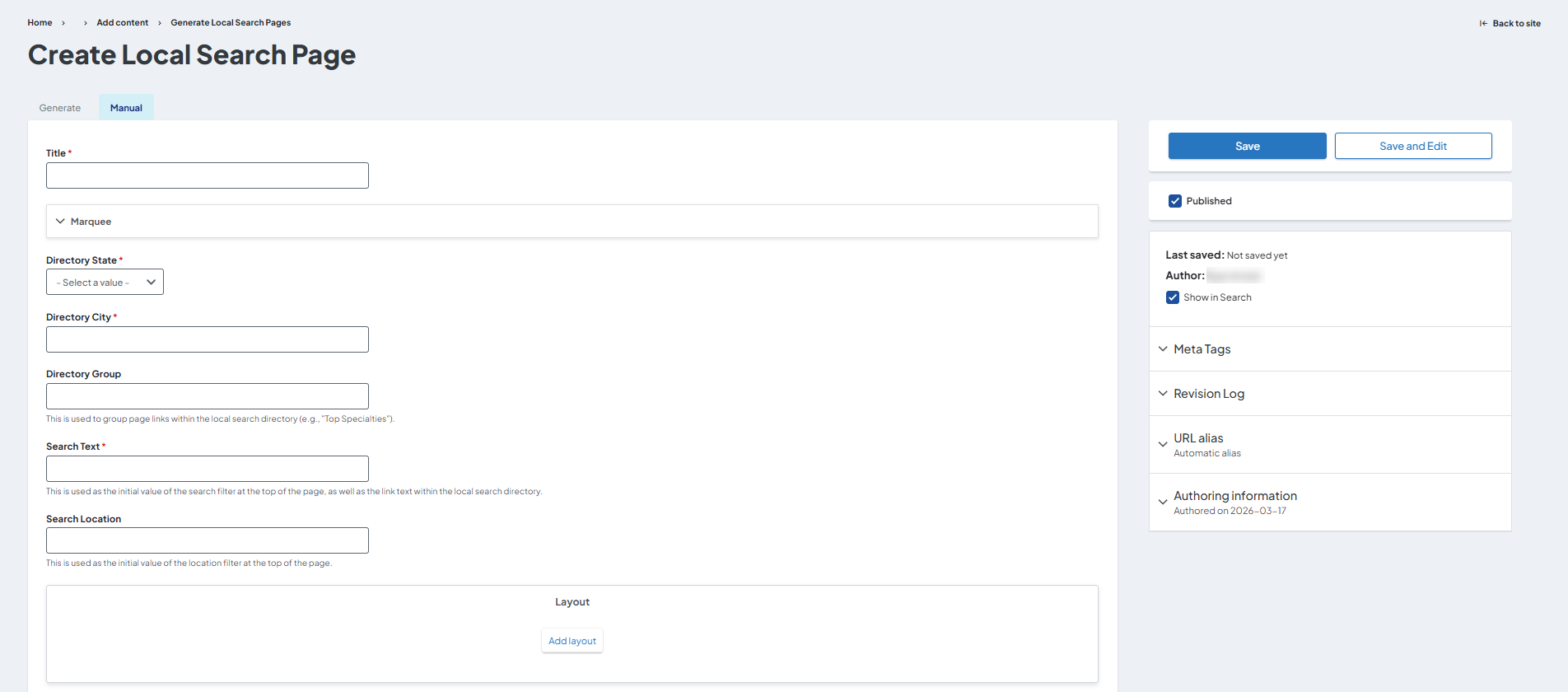
By selecting Manual, you can:
- Design the directory layout.
- Manually include the tags (taxonomy terms) and distance filters you want.
- Create curated pages that target specific SEO keywords or user journeys.
Field definitions
* denotes a required field.
- Title *: Enter the title of the Local Search Page.
- Marquee:
- Content: Enter an optional alternate page title and set the text color.
- Settings: Set a background color; background image; set an optional overlay over the background image with independent overlay color, opacity, and blend mode settings.
- Directory State *: The designated local state to be included in search results.
- Directory City *: The designated local city to be included in search results.
- Directory Group: Used to group page links within the local search directory (e.g., "Top Specialties").
- Search Text *: Enter an initial value of the search filter at the top of the page. This is also used as the link text within the local search directory.
- Search Location: This is used as the initial value of the location filter at the top of the page.
- Layout: Design the Local Search Page here using sections and components.
- Google map: Enter an address to be localized.
- Distance *: Records within this number of miles of the latitude and longitude will display on the page.
- Tags *: Records related to these terms will display on the page.
- Add another item: Adds additional tags to be included in the results.
When ready to publish: make sure Publish is checked, then click Save.
Best practices & notes
See our best practice article for tips and notes on creating Local Search Pages.
Related Help Content
 DXE
DXE
Ignite U LIVE
Welcome to Ignite U LIVE, your educational webinar series for staying ahead in the ever-evolving world of...
DXE: Adding content
Add content
With your site theme and components established, you can start creating content. Content can be added in ...
DXE: Organizing content
Basic menu vs custom block menu
You can place the menu on your site directly, or set the menu to a custom Menu block and place the block ...
DXE: Adding content
Standard layout
SummaryA standard layout page is a simplified way to create a content page for your site. Basic features ...
DXE: Configuration
Reference: Source Sync Report
OverviewThe Source Sync Report is a useful audit trail for sites that sync content data (such as provider...
DXE: Configuration
Reference: Automatically block inactive users
OverviewWhen DXE Users haven’t logged into their site for an extended period of time, it’s often beca...