In this release: New AI Alt Text Generator | Screen reader carousel enhancement | Screen reader location search results enhancement | Fixes


New AI-powered bulk alt text tool
Create, review, and publish image descriptions for multiple doctor and location pages all in one handy dashboard!
What it is
Alt Text Generator is a new dashboard that helps you manage missing image provider and location descriptions. It finds all photos on provider and location nodes that need alt text and lists them together in one central table. You can use built-in AI to write these descriptions, edit them as needed, and approve them before they go live on your site.
How it works
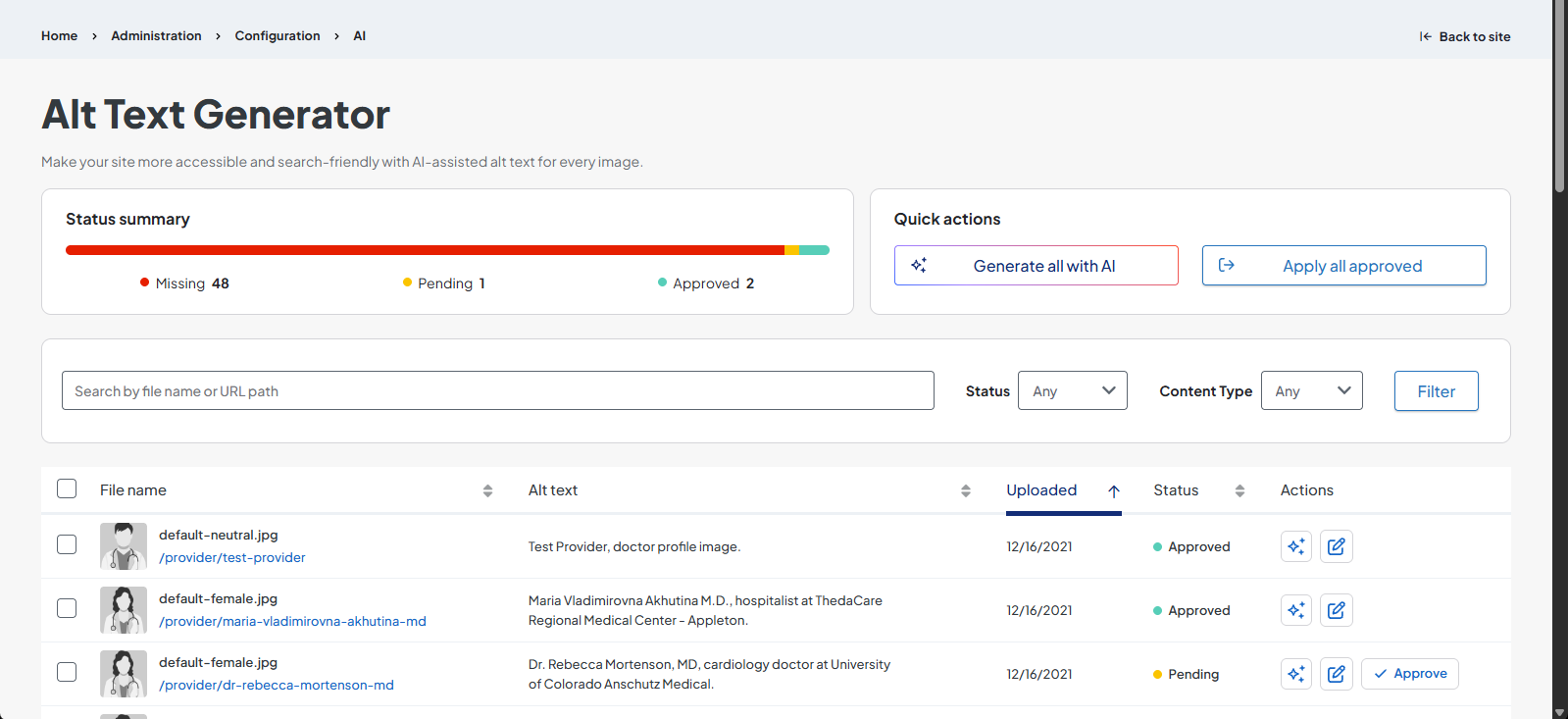
The Alt Text Generator dashboard displays a list of all provider and location images without published alt text and their current draft status (Missing, Pending, or Approved.) Users with a DXE Manager role can open the tool by navigating to Configuration > AI > AI Alt Text Generator from the DXE Toolbar.
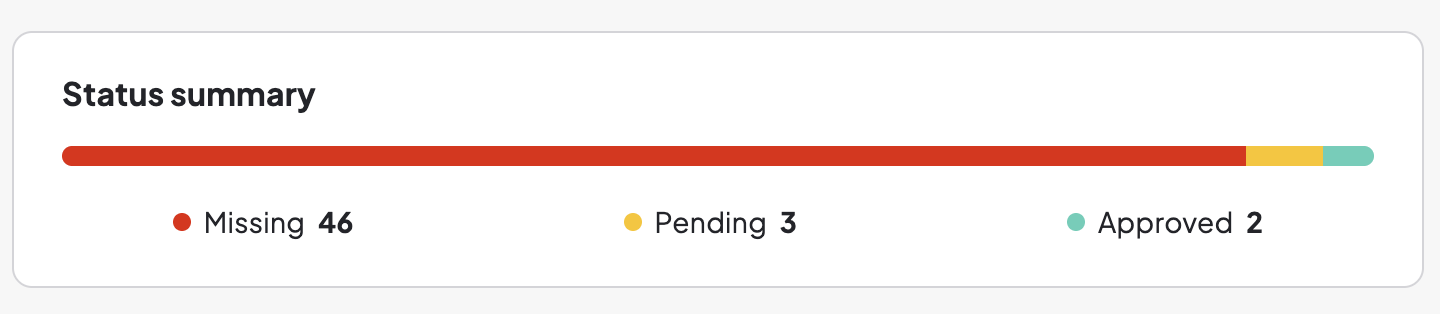
At the top left of the page, you’ll see a Status summary displaying the number of missing, pending, and approved alt text drafts.
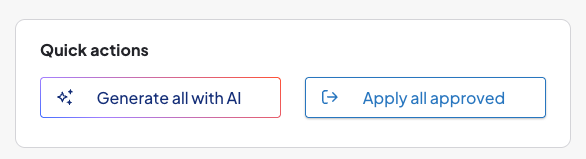
The top right displays two Quick actions to expedite content generation and publishing:
- Generate all with AI: Draft alt text for all the providers/locations with no drafted alt text (“Missing” status)
- Apply all approved: Publish all alt text that has been approved by a DXE Manager (“Approved” status)
Directly below those Quick actions are the filter options, allowing you to filter the list of images by:
- Full/partial file name and URL path
- Status (Missing, Pending, or Approved)
- Content Type (Provider or Location)

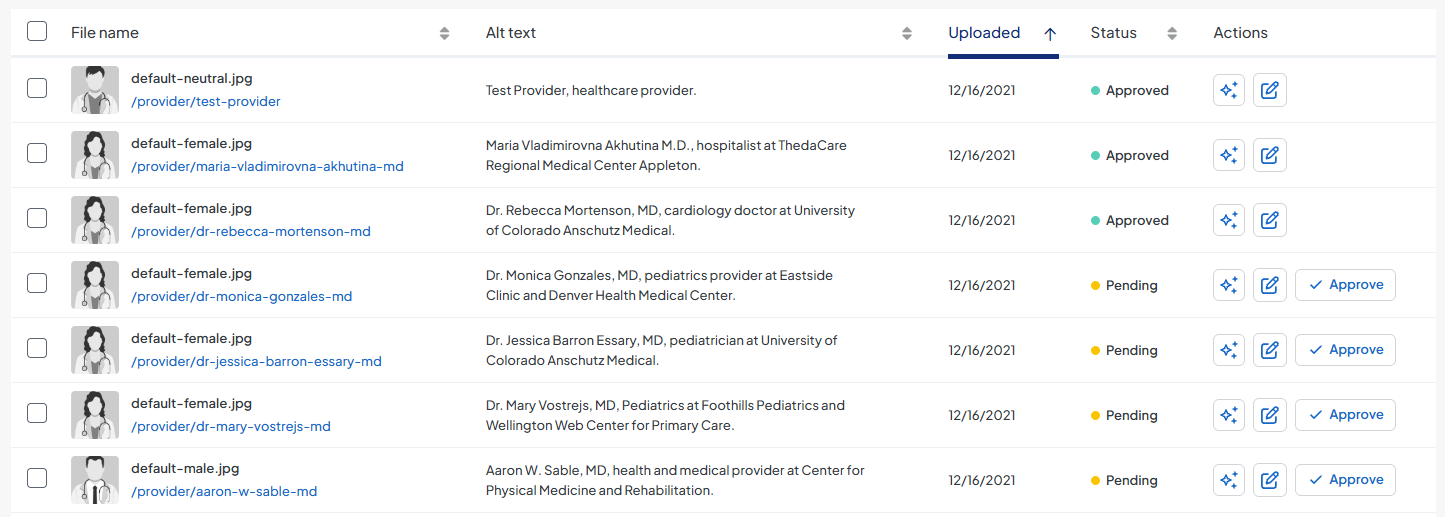
At the bottom of the page is the list of provider and location images. Each image displays:
- Selection checkbox
- Image thumbnail
- File name and file path
- Current drafted alt text (if any)
- Date the image was uploaded
- Status (Missing, Pending, or Approved)
- Actions buttons:
- Generate alt text (for this image only)
- Manually edit alt text
- Approve alt text (for this image only)
Mark the checkboxes next to multiple images to display bulk edit controls for just the selected images, including:
-
Mark as approved: Sets the status of the selected images to Approved
Note: Images with a "Missing" status (without any drafted alt text) cannot be approved. If any are included in the selected items, they will be skipped. -
Generate alt text: Drafts alt text for the selected images only
Note: This will overwrite any existing drafted alt text for the selected images. -
Apply to site: Publish any approved alt text
Note: This option is enabled if any of the selected images have a status of "Approved." Clicking it will only publish the alt text with Approved status. Any other selected images with any other status will remain unpublished.
Why it matters
Adding alt text helps screen readers describe images to visually impaired visitors and improves your overall website accessibility. Creating descriptions for images one by one takes a lot of time, but this tool lets you process multiple photos at once to save hours of effort. It also ensures you keep full control by requiring human approval before any AI-generated text is published.

Screen readers now clearly announce carousel slide changes
Visiting your website with a screen reader is now easier thanks to upgraded slideshow controls.
What it is
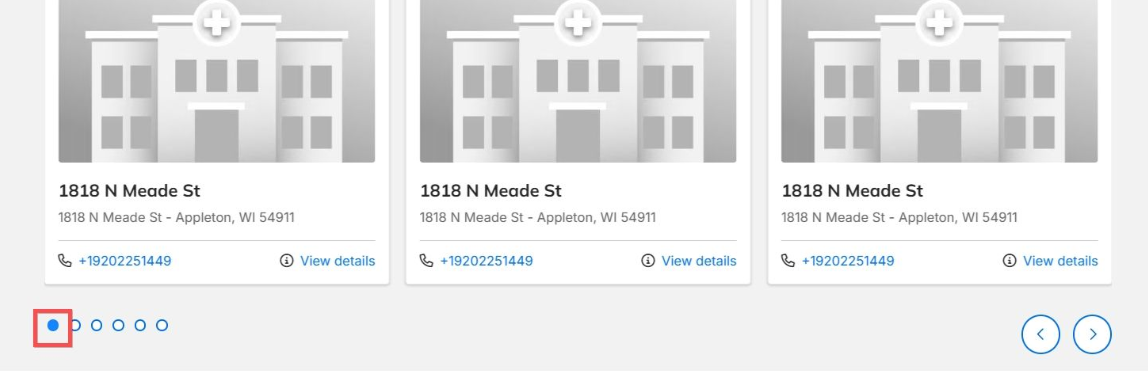
This enhancement improves accessibility for image carousels and slideshows across your pages. Now navigation dots feature clear accessible labels such as "Slide 1" and "Slide 2". The slideshow templates now also include automatic announcements whenever a visible slide changes.
How it works
This update is automatically built into all carousel templates across the platform, so no extra setup or configuration is required. As visitors or auto-play features move to the next slide, the screen reader automatically reads the updated slide information out loud.
Why it matters
People who use screen readers can get confused when image slideshows change without warning. By providing clear dot labels and live slide updates, this feature makes your website much easier to navigate for visually impaired visitors and keeps your site up to modern accessibility standards.
Location search results now give real-time audio updates
Screen reader users can now instantly hear how many search results match their chosen location filters.
What it is
We added automatic screen reader announcements to the location search results counter. Whenever a visitor picks search filters or changes checkboxes on a location search page, screen readers instantly read the new number of matching locations out loud. For instance, choosing a medical specialty will announce clear updates like "1 location".
How it works
This feature works automatically across your location search pages with no activation steps needed. When a user selects or unchecks any filter option, the system calculates the result count and announces the total to the user's screen reader.
Why it matters
Without audio feedback, visitors using screen readers cannot tell if applying a search filter changed the list of places on screen. This update gives immediate feedback so users with visual impairments can quickly find the care centers or offices they need.

- TypeError when setting Widget content mode to "Manual Selection": This fix resolves an issue where editing a Location or Provider widget and switching the content mode to "Manual Selection" caused a TypeError. Content managers can now switch between content selection modes smoothly without triggering error screens or interrupting their workflow.
Related Help Content
 DXE
DXE
Release notes: April 30, 2026
The universal access update: seamless navigation for every userWe’re continually working to improve cor...
DXE
Release notes: April 16, 2026
Listing Grids in Posts: Fixed an issue where custom text entered in the Read more label field for Listing...
DXE
Jul 2023 release notes
Image carouselsAn image carousel allows you to add a collection of pictures to any section in your site! ...
DXE
Release notes: February 26, 2026
Provider image alt text: Previously, the default provider image may have been missing alt text. This crea...
DXE
Release notes: September 25, 2025
Automatically block inactive usersNow, you can ensure only users who log in regularly are able to access ...
DXE
Release notes: February 2025
Provider Search: Support for nested termsNew filter options help your users get straight to the Providers...