The Taxonomy Usage Report shows how taxonomy terms are assigned to content across your DXE site. It brings insight and action together in one place: you can see the current state, understand how terms and content relate, and make adjustments on the spot without leaving the screen.
Getting started
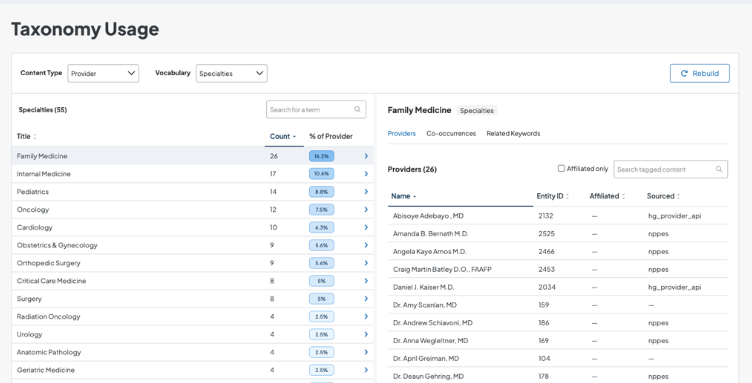
Choose a content type to explore, then pick a vocabulary (Specialties, Conditions, Procedures, etc.). The report breaks down the terms in that vocabulary and shows which content each term is tagged to.
What are Co-occurrences?
Once you select a term, you can view all content tagged with it, see its related keywords, or open Co-occurrences. This view shows how your selected term (the “base term”) overlaps with terms from other vocabularies. Those connections matter: they shape search relevance and discoverability for your end users.
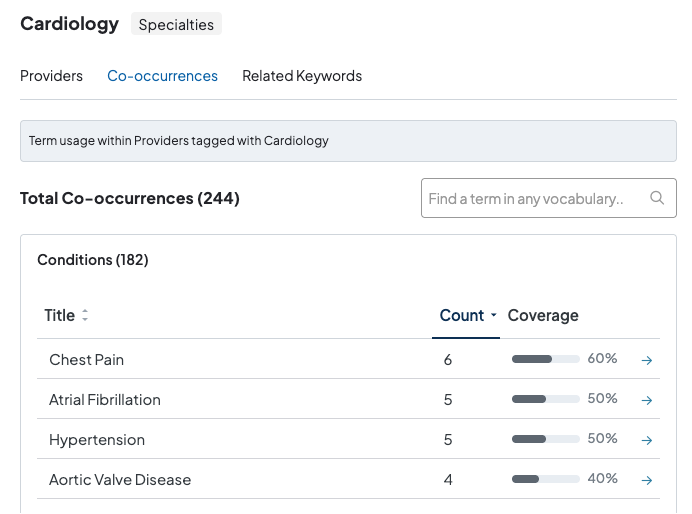
For example, if your base term is Cardiology (Specialty), Co-occurrences lists every term from any vocabulary that is tagged to the same content as Cardiology, such as Conditions or Procedures. That makes it easy to spot gaps where terms should overlap, or terms that are related by accident and shouldn’t be.
Reading the results
Co-occurring terms are grouped by vocabulary. Counts and coverage figures are relative to content tagged with the base term, not the site total.
Taking action
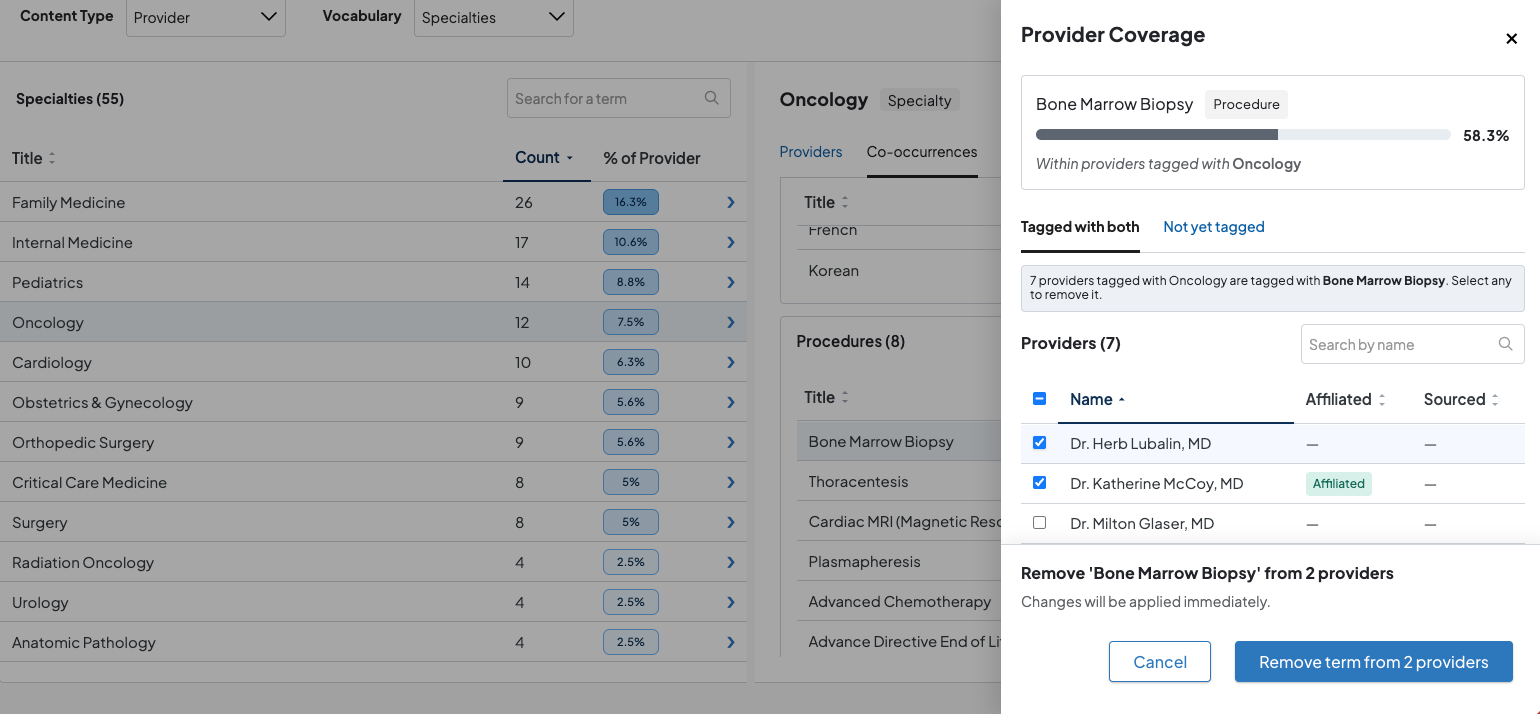
Click a co-occurring term to open the details panel. It shows two lists: content tagged with both terms, and content missing the co-occurring term. From there you can:
- Select items from the “not yet tagged” list to add the co-occurring term
- Select items from the “tagged with both” list to remove it

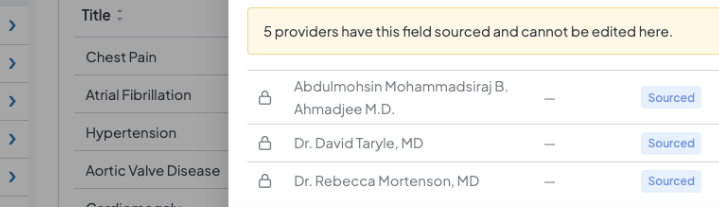
Content synced from an external source appears in the list with a Sourced badge. These items can’t be edited here. Changing them requires updating the source configuration.
Example use cases
- Close tagging gaps. Every provider tagged with the Cardiology specialty should also carry core conditions like Heart Failure or Arrhythmia. Open Cardiology’s co-occurrences, check the Conditions vocabulary, and add the missing term to any provider who was overlooked.
- Catch inaccurate tags. If Dermatology content shows a co-occurrence with a cardiac procedure, that’s likely a tagging error. Review the “tagged with both” list and remove the term where it doesn’t belong.
- Improve search results. If patients searching for a condition aren’t finding the right providers, check whether the condition co-occurs with the relevant specialties. Low coverage points to content that’s hard to discover.
- Prepare for a new service line. When launching a new program, such as a Women’s Heart Health clinic, verify that the related specialty, condition, and procedure terms are applied consistently to the right providers and locations.
- Audit after a content migration. After importing or restructuring content, use co-occurrence coverage to confirm that relationships between vocabularies survived intact.
- Validate your taxonomy design. Terms that you expected to overlap heavily but rarely do (or the reverse) may signal a need to revisit how vocabularies are structured.
Related Help Content

2026 roadmap: Stronger conversions, smarter tools
Exciting things are on the horizon for the Digital Experience Engine. We’ve spent the last few months l...
DXE
Ignite U LIVE Webinar - June 10, 2026
Please view our June 10, 2026 Ignite Education Ignite U LIVE discussion with:Marsha Gelber; Associate Dir...
DXE: Adding content
Best way to display content
With DXE, you have three flexible tools for featuring related content: Listing Grids, Content Feeds, and ...
Sneak peek: Optimize search with taxonomy intelligence
When a patient turns to your website to find care, their experience relies on the clinical data architect...
Release notes: September 24, 2026
In this release: Taxonomy Usage Report | Bulk Bio Generator | AI Alt Text | Accessibility | FixesMaster y...
DXE: Builder basics
Taxonomy Usage Report
wistia-player[media-id='gbj6bmfwfi']:not(:defined) { background: center / contain no-repeat url('https://...