Overview
AI Content Guidelines are broad rules you can set for text content generated by AI. If your company brand has a specific writing rules for certain (or all) scenarios, you can add those rules as guidelines. Whenever generating content, the AI tool will reference and follow the rules that apply to its task, without the user having to specify them. Setting site-wide guidelines ensures that all generated content follows the same rules consistently.
Guidelines are similar to, but distinct from tones. While tones help direct the voice and inflection of writing (e.g., formal vs. familiar, or a reading comprehension level), guidelines are for more thorough specific rule sets for terminology, punctuation and formatting. Different tones can also be selected during content generation, while guidelines are steadfast and influence the output automatically. Tones and guidelines should have no mutually exclusive rules in them. If any exist, the AI will attempt to follow the applicable rules as closely as possible.
While guidelines have a moderation status (e.g., Draft, Published, or Archived). Only guidelines in Published status will be used.
Managing content guidelines
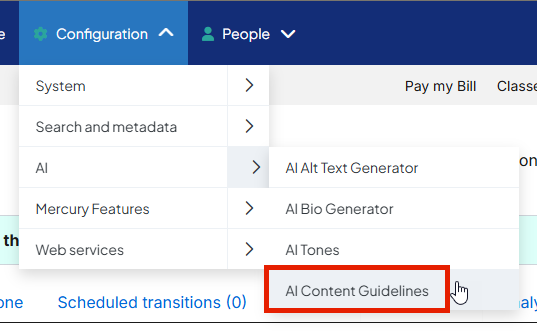
In the DXE Toolbar, click Configuration > AI > AI Content Guidelines.
The Content Guidelines page will appear and display any guidelines that already exist in the Guidelines list.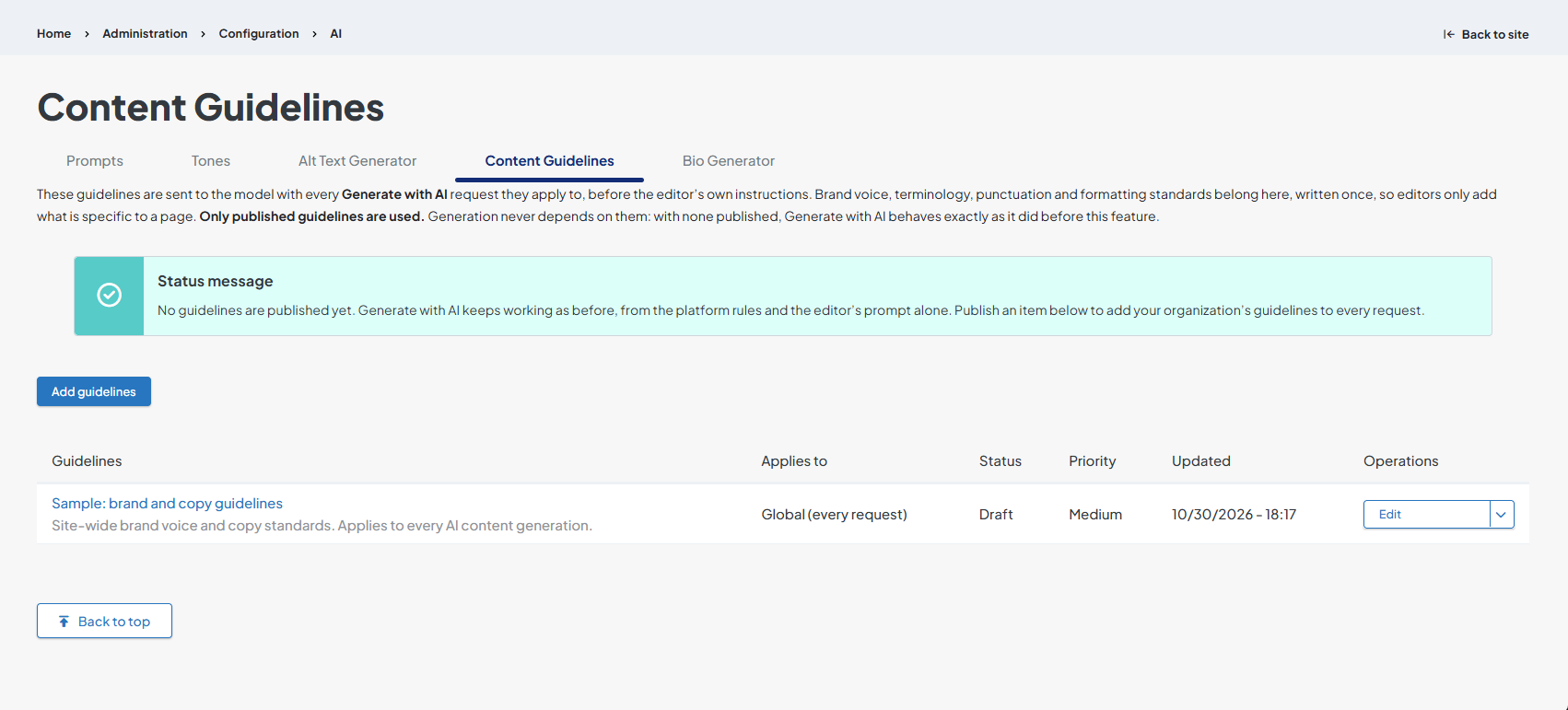
Adding guidelines
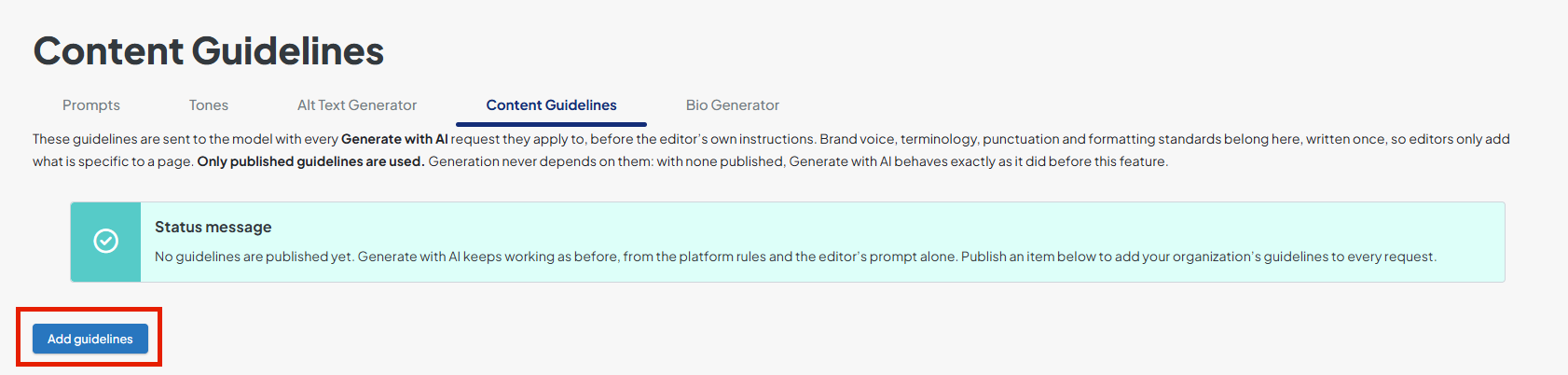
- Click Add guidelines.
- Fill out the Add Context Item screen:
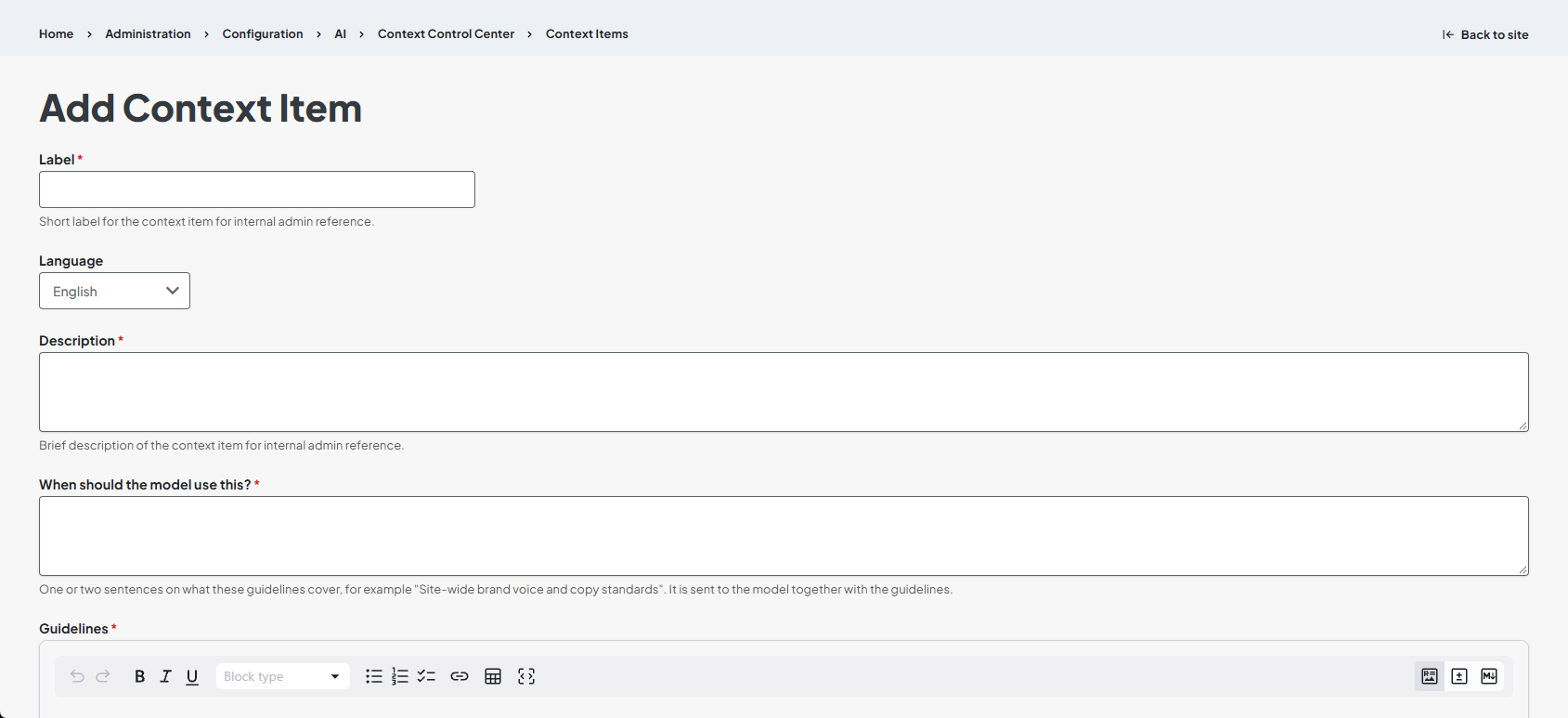
- Label: Short label for the context item for internal admin reference.
- Language: Language this guideline is written in.
- Description: Brief description of the context item for internal admin reference.
- When should the model use this?: One or two sentences on what these guidelines cover, for example "Site-wide brand voice and copy standards".
- The AI tool will use this to evaluate whether to apply these guidelines to its current task.
- Guidelines: A bulleted set of writing rules sent to the model, as written, with every Generate with AI request.
- These should be written as organized rules: a heading per topic, one bullet per rule, with "Write" / "Do not write" examples. See How to write guidelines for a template.
- Revision Log
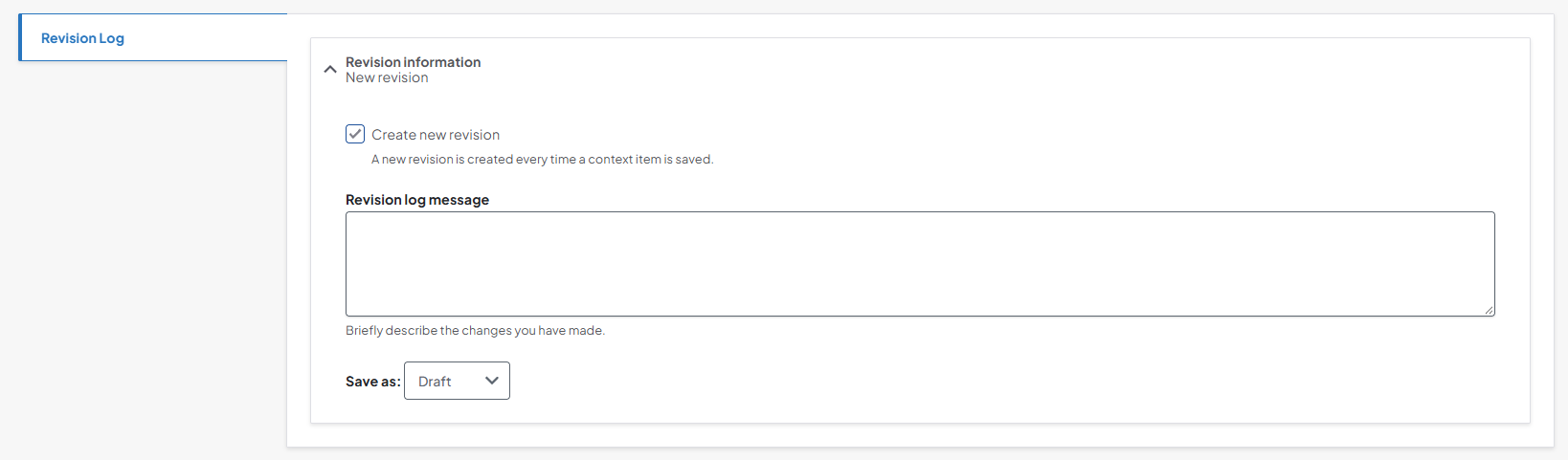
- Create new revision: When checked, creates a new revision on save.
- This is selected by default and cannot be unchecked.
- Revision log information: Optional short note to briefly describe the changes in this revision.
- Save as: Set the moderation status.
- Draft: For works in progress. Draft state guidelines will not be used by the AI content generator by default, but temporary unpublished access can be granted to them. See Editing guidelines for more.
- Published: Activates the guidelines. They will be used by the AI content generator if the set criteria under Where these guidelines apply are met.
- Archived: Deactivates published guidelines. They can be set back to Draft for editing and re-publishing later.
- Create new revision: When checked, creates a new revision on save.
- Where these guidelines apply: Options to set the scenarios where AI will reference these guidelines when creating content.
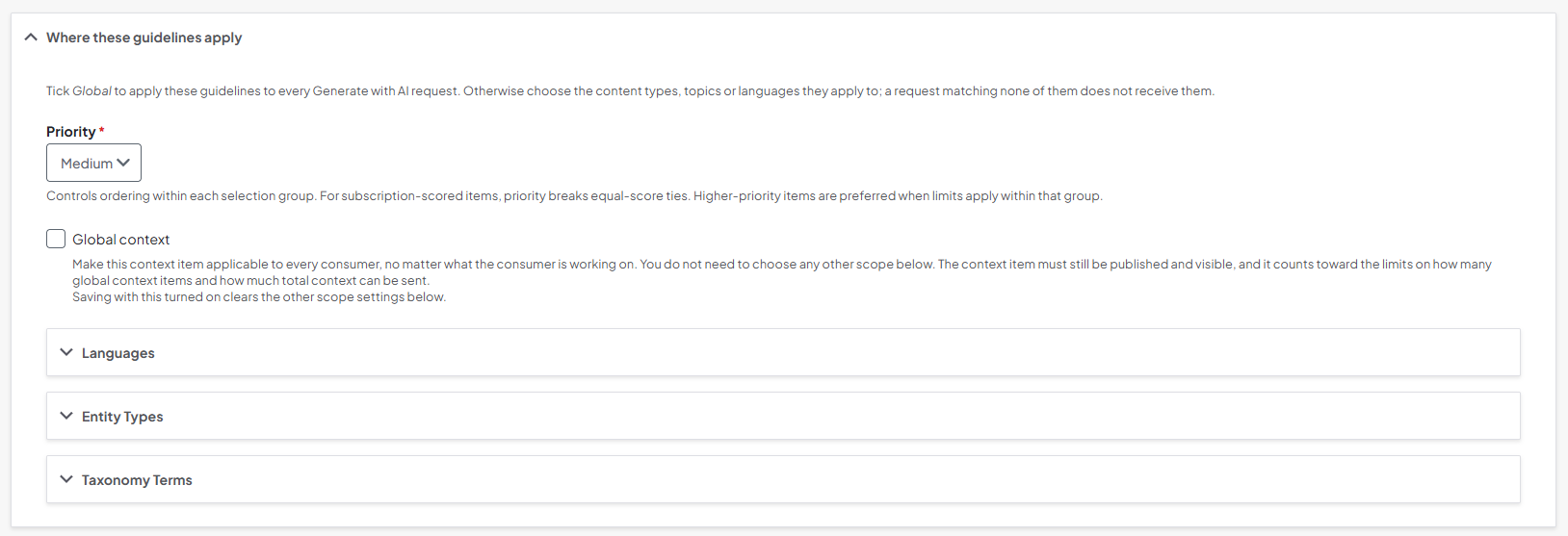
- Priority: Controls ordering within each selection group of guidelines.
- Options are: Low, Medium, High.
- There is a limit on how many guidelines (i.e. how much context) can be sent along with an AI generation request. Higher-priority items are selected when limits apply.
- Global context: Sets the guidelines to be referenced in all scenarios.
- Checking this box removes the Languages, Entity Types, and Taxonomy Terms settings, as no further configuration is needed.
- Languages: The languages that the guidelines apply to.
- If the current page or content is in a different language, thes guidelines are skipped. If the current language cannot be determined, these guidelines will not be skipped (unless other context requirements are not met).
- Entity Types: The content types and/or taxonomy vocabularies these guidelines apply to.
- Choose All for a type to include every current and future bundle of that type.
- If the node where AI is being generated doesn't match the content types or have any terms of the vocabularies selected here, the guidelines will be skipped.
- Taxonomy Terms: The taxonomy terms that the guidelines apply to.
- All taxonomy vocabularies are listed here with input boxes. Type in and select taxonomy terms that these guidelines should apply to.
- If the node where AI is being generated does not use those terms, the guidelines will be skipped.
- Priority: Controls ordering within each selection group of guidelines.
- When done with configuration, click Save. The new guidelines will appear in the Guidelines list.
How to write guidelines
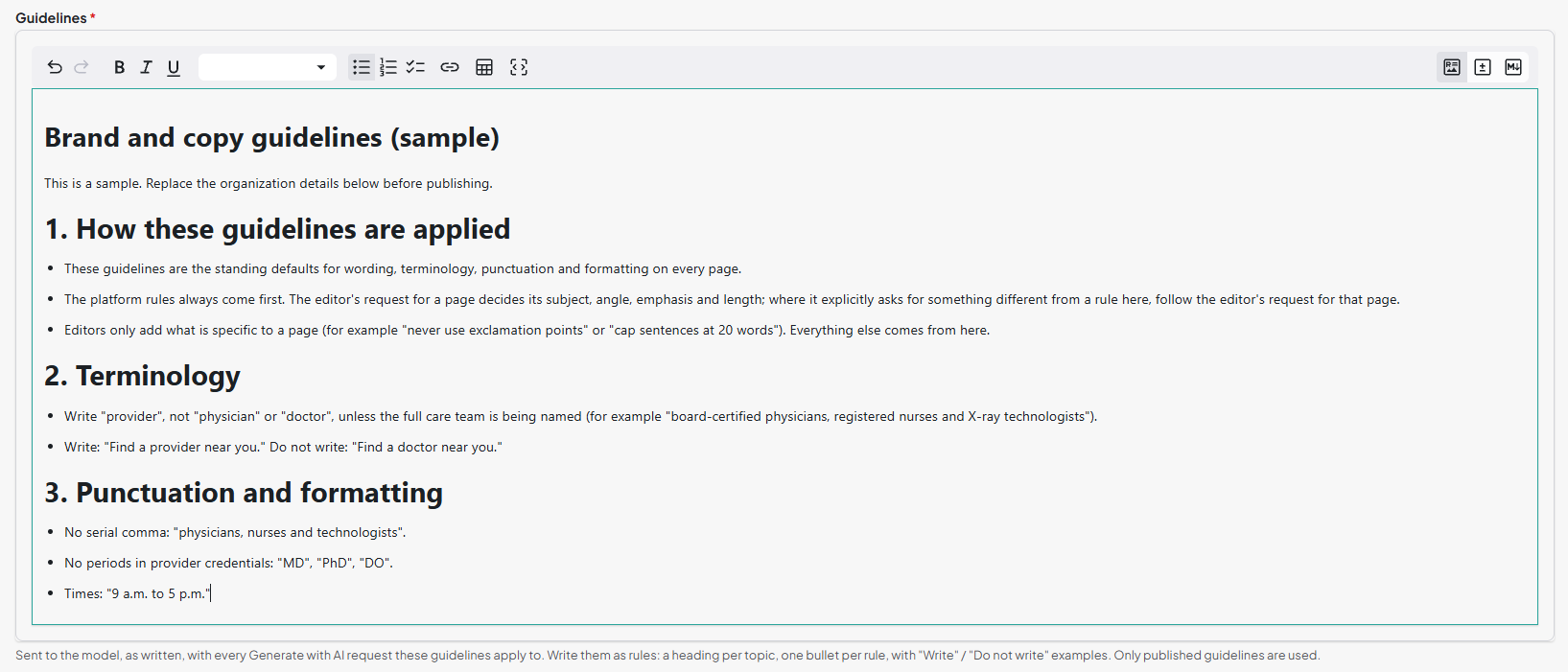
Guidelines should be organized well with headers and bullets, and minimal extraneous text. Bullets should be direct and specific. Use the example below as a template:
Brand and copy guidelines (sample)
This is a sample. Replace with your organization's guidelines below before publishing.
1. How these guidelines are applied
- These guidelines are the standing defaults for wording, terminology, punctuation and formatting on every page.
- The platform rules always come first. The editor's request for a page decides its subject, angle, emphasis and length; where it explicitly asks for something different from a rule here, follow the editor's request for that page.
- Editors only add what is specific to a page (for example "never use exclamation points" or "cap sentences at 20 words"). Everything else comes from here.
2. Terminology
- Write "provider", not "physician" or "doctor", unless the full care team is being named (for example "board-certified physicians, registered nurses and X-ray technologists").
- Write: "Find a provider near you." Do not write: "Find a doctor near you."
3. Punctuation and formatting
- No serial comma: "physicians, nurses and technologists".
- No periods in provider credentials: "MD", "PhD", "DO".
- Times: "9 a.m. to 5 p.m."
How it looks in the Guidelines field:
Editing guidelines
- From the Content Guidelines screen, click the guideline's label or Edit button:

- The dropdown next to the Edit button is for viewing revisions, duplicating, or deleting the guidelines. See Other operations below.
- Edit the fields as necessary. Refer to the field definitions under Adding guidelines if needed. There is one additional set of options:
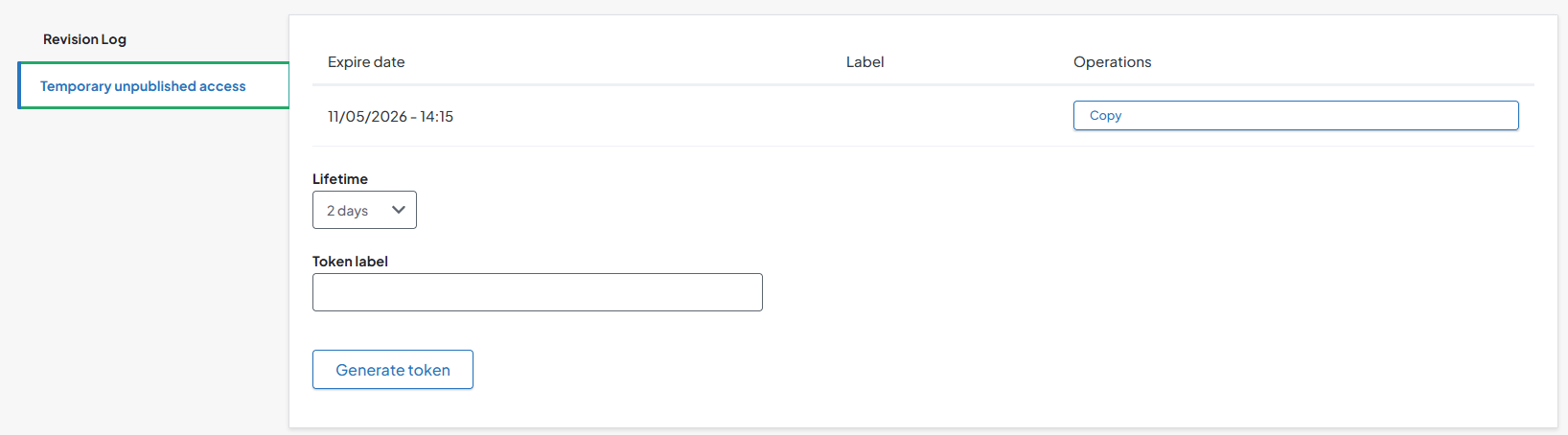
- Temporary unpublished access: Create a URL with unique parameter (token) that grants time-limited view and edit access to Draft state guidelines for other authenticated users.
- Lifetime: Set the number of days that a new token will be valid before expiring.
- Token label: Text label for a new token.
- Generate token: Generates a new token with the set Lifetime and Token label.
- Copy: Appears next to each token - click to copy the token for sharing.
- Temporary unpublished access: Create a URL with unique parameter (token) that grants time-limited view and edit access to Draft state guidelines for other authenticated users.
Other operations
- Click the dropdown arrow next to the Edit button for more controls:
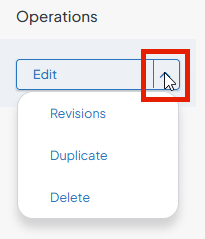
- Revisions: Display revision history for this guideline.
- Duplicate: Copy this guideline to a new guideline.
- Delete: Erase this guideline.
- You will have to confirm deletion. Deleted guidelines cannot be recovered; they must be manually recreated.
Related Help Content

AI Alt Text Generator
OverviewThe AI Alt Text Generator dashboard is designed to help users manage AI-generated alt text for im...
DXE: Builder basics
Building a brand
Building your brand in DXE is a critical part of establishing your online presence. DXE includes hundreds...
Release notes: October 8, 2026
In this release: AI content generator | FixesAI content generator: draft content right inside the content...
DXE: Getting started
Get started with DX Engine
Ignite Digital Experience Engine ("DX Engine" or "DXE") is a powerful, intuitive tool for establishing yo...
DXE: Customizing
How-to: Customize DXE Provider Search
OverviewThe built-in Digital Experience Engine (DXE) Provider Search comes with many customization option...
DXE
Organizing content
DX Engine has specialized tools to create all kinds of content to represent your healthcare organization ...