In this release: AI Content Guidelines | Accessibility | Fixes


Teach the AI your brand voice, once
Stop pasting the same brand rules into every AI prompt. Set them one time, and every page your editors generate with AI follows them.
What it is
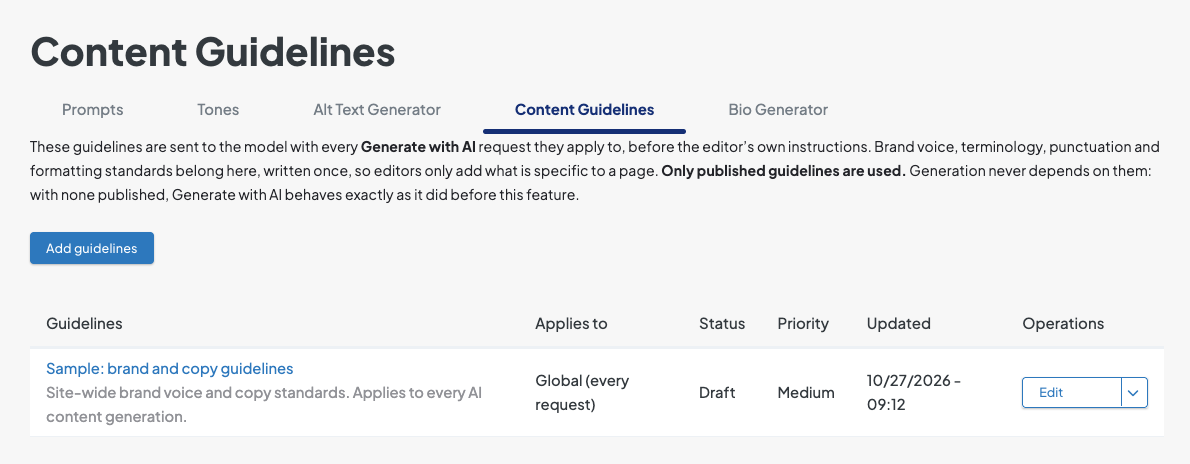
AI Content Guidelines is a new AI configuration that lets site managers set organization-wide content rules, such as brand voice, approved terminology, punctuation, and formatting, in one central place. Once published, those rules automatically apply to page body content generated by AI.
How it works
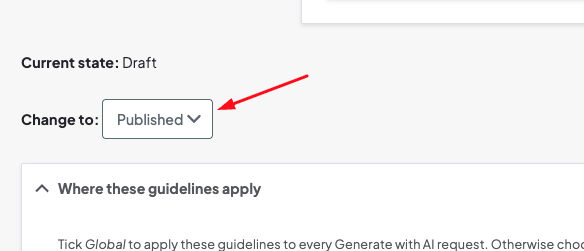
- To get started: Go to Configuration > AI > AI Content Guidelines, click Add guidelines (or edit an existing draft), set the scope by choosing content types to apply the guidelines to, and change the status to Published.
-
Centralized rules: Define standing rules for voice, terminology, punctuation, and formatting under the new Content Guidelines tab.
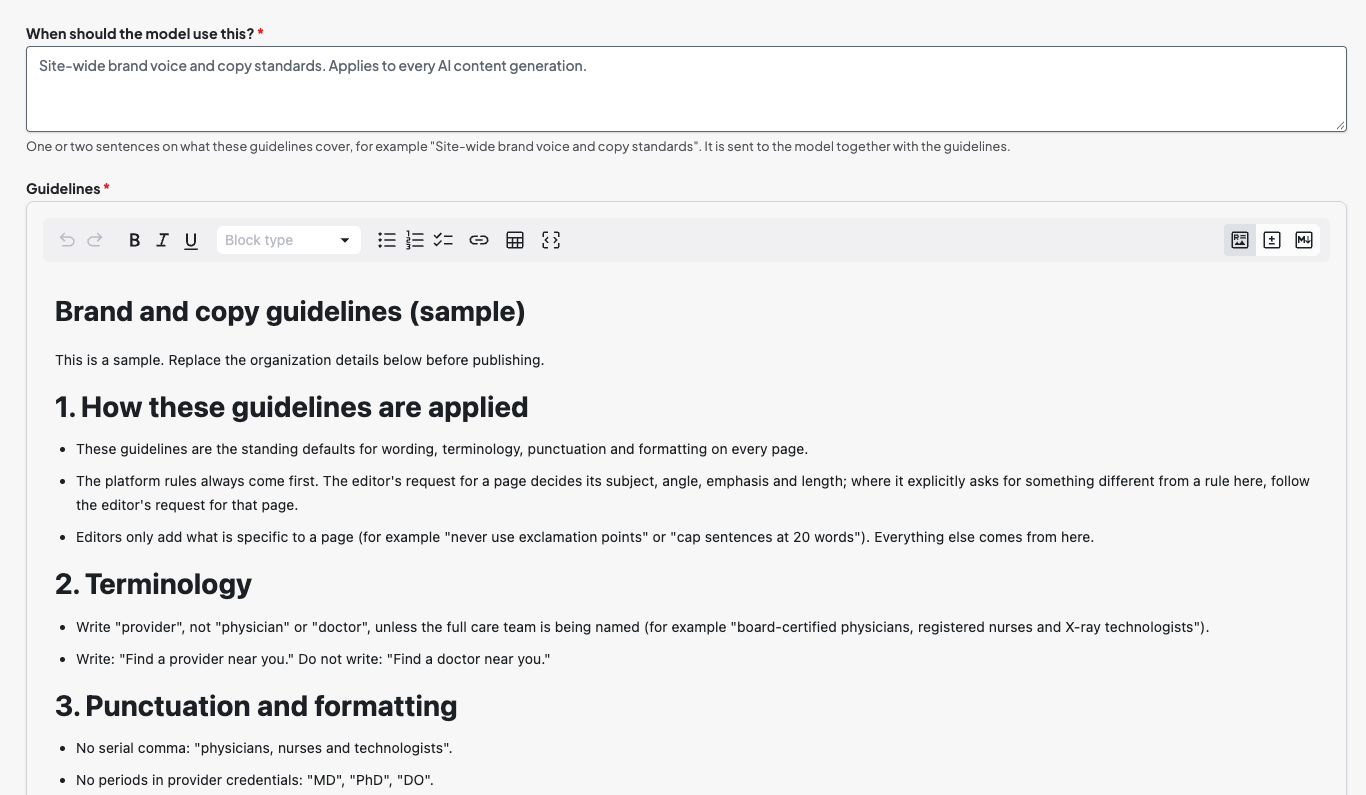
- Targeted application: Apply guidelines globally, or limit them to specific content types, languages, or topic tags.
- Automated prompts: Published rules are added to every page body generation request, working alongside the editor’s own prompt.
Audit logging: Check the Logs tab anytime to see exactly which guidelines were sent to the AI for any generation. - For editors: When content creators use Generate with AI on a page, active guidelines automatically guide the output.
- Permissions: Only DXE Managers and admins are able to edit AI Content guidelines, other roles have active guidelines applied to anything they generate but cannot create or edit guidelines.
Why it matters
Consistent brand voice no longer depends on every editor remembering every rule. Your organization’s standards are applied automatically, so AI-generated content is on-brand from the first draft, with less rework and less time spent writing prompts.

Accessibility upgrades across your site: Easier for everyone to navigate
Every visitor should be able to find care, no matter how they browse. This release makes key parts of your site work better with screen readers and keyboards.
What it is
A set of accessibility improvements across navigation, search, galleries, and events, so visitors who use assistive technology or navigate without a mouse can use your site with confidence. Each update is built to WAI-ARIA and WCAG standards.
How it works
-
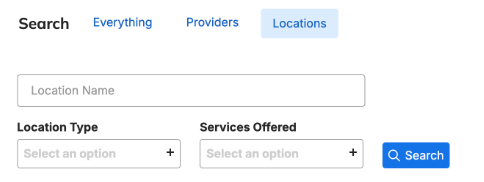
Full keyboard access: Tabs, the header search scope switcher (Everything / Providers / Locations), search results filters (relating to WCAG 4.1.2), and the Events date filter now support keyboard navigation, including arrow keys, Home, and End where they apply (related to WCAG 2.1.1 and 2.1.3).
-
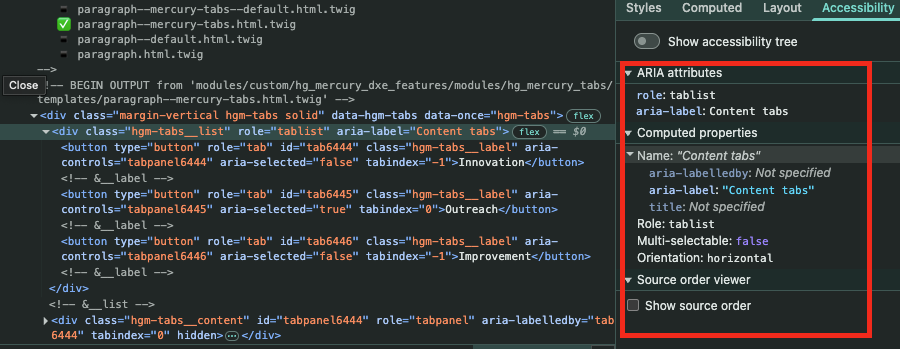
Tabs announced correctly: The Tabs component, search scope switcher, and search results filters now announce as tabs, with their name and selected state, instead of being misidentified as radio buttons.
-
Image gallery lightbox: Focus stays inside the open lightbox and returns to the original thumbnail when it closes. Thumbnails are labeled buttons, and screen readers announce progress (“Image X of Y”). This maintains compliance to WCAG 2.4.3.

- Clearer labels and names:
-
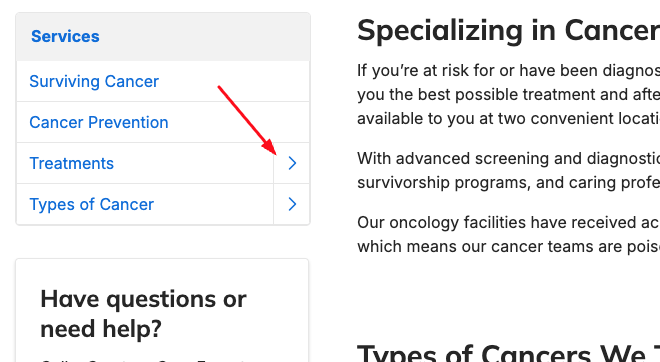
Drilldown menu toggles name the submenu they open (relating to WCAG 4.1.2).
-
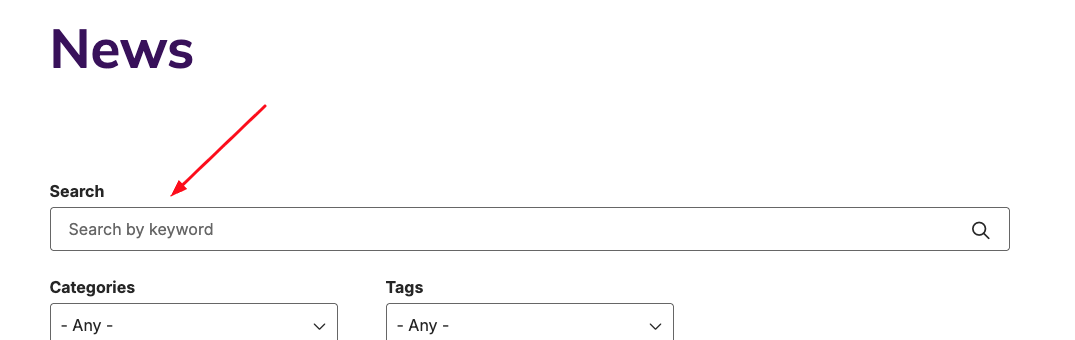
The “Search by keyword” field announces its visible label in Post search (related to WCAG 1.3.1 and 4.1.2).
-
The footer logo and homepage link describe the brand and destination (related to WCAG 1.1.1).
-
-
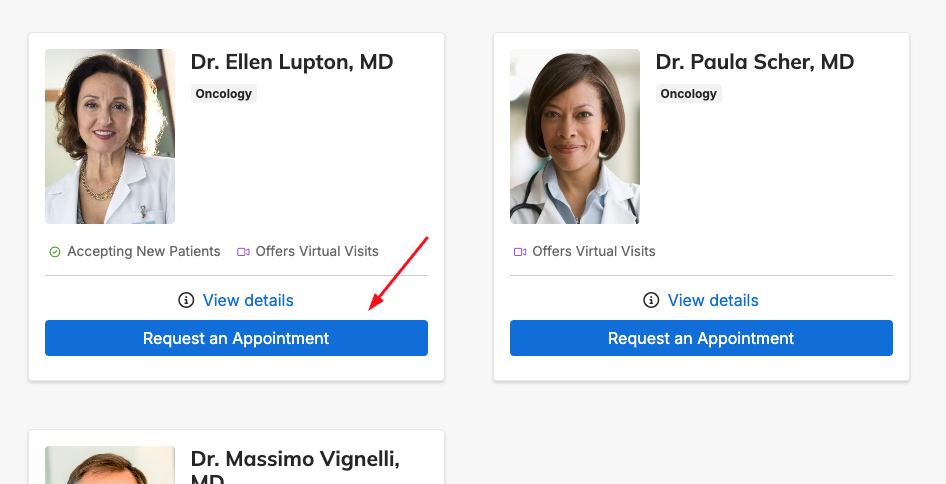
Better page structure: Header search suggestion categories (Conditions, Procedures, and more) are now real headings, and Listing Grid call-to-action links, such as “Request an Appointment,” resolve to consistent, working destinations (relating to WCAG 1.3.1).
-
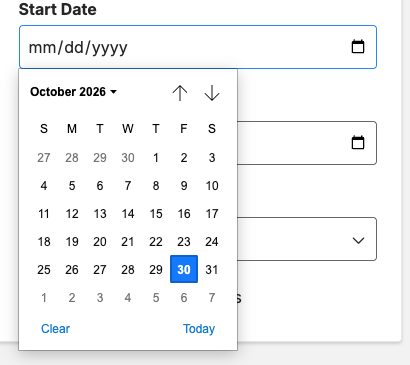
Events search date filters: The legacy date picker was replaced with native browser date inputs, so users can type dates or open the calendar from the keyboard. Filter chips now display correctly in the local time zone, and “Clear all filters” works on sites with a single active date field (related to WCAG 2.1.1 and 2.1.3).
Why it matters
Accessible sites reach more patients and caregivers, including people who rely on screen readers or keyboards. These updates help your site meet accessibility standards while keeping the look and behavior your other visitors already know.

- Account deletion no longer throws an error: Canceling or deleting a user account was sometimes triggering a website error (HTTP 500) when a required background database table was missing.The system now detects the missing table and creates it automatically. Account cancellation and deletion now complete as expected across all sites.
Related Help Content
 DXE: Configuration
Reference: Source Sync Report
OverviewThe Source Sync Report is a useful audit trail for sites that sync content data (such as provider...
DXE
Release notes: April 16, 2026
Listing Grids in Posts: Fixed an issue where custom text entered in the Read more label field for Listing...
DXE
Oct 2023 release notes
Browse A-Z section for Services search pageYou can now set Services search pages to show a convenient br...
DXE
Release notes: October, 2024
Easily pick, click, and apply color to textWhat it isNew Color Picker tool in the WYSIWYG text editor yo...
DXE: Configuration
Ignite U LIVE Webinar - September 16, 2026
Please view our September 16, 2026 Ignite Education Ignite U LIVE discussion with:Marsha Gelber; Associat...
DXE
Release notes: May 2025
Quickly find and fix broken linksMake sure your site is up to date with our brand new feature.What it isT...